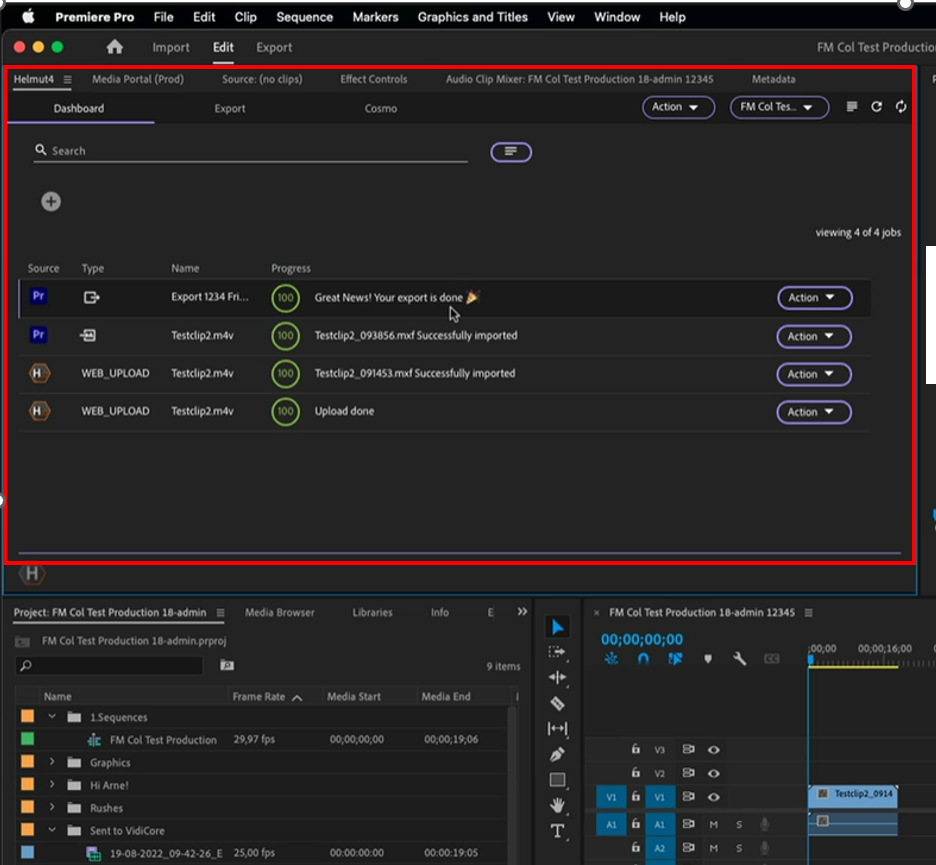
Helmut4 is extremely flexible and so there is no fixed workflow that works for every customer but rather depending on customer needs the application is adapted to support the customer workflow. Thus this page rather describes exemplary workflows from a user perspective. You find the official documentation of the Helmut4 components from the official Helmut docu: https://docs.helmut.de/helmut4-releases/getting-started/overview
In the following we describe how a common workflow could look like when Helmut4 and Vidispine system are integrated, knowing that each system is different:
Create / Open Editing Project
-
A standard editing workflow usually start from the Helmut4 UI – a web page that serves as entry point for the user. The Helmut4 UI lists all existing editing projects the user is allowed to see and can open in Adobe Premiere or perform other actions depending on available rights and configurations.
-
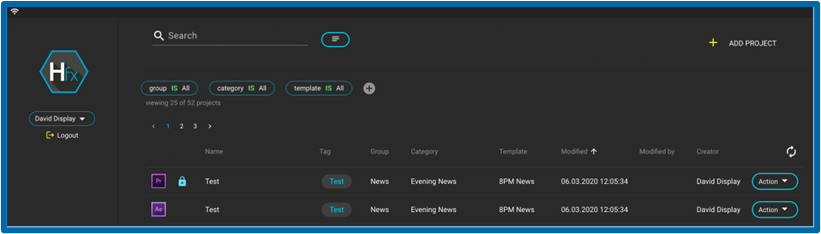
Helmut UI (FX)
-
-
By clicking the “+ Add Project” button in the upper right corner the Create Project dialog will be opened.
-
The metadata fields of the “Add a new Project” dialog are configurable, however users always need to define as minimum which group, category and template the project should be created for. Doing this, the user already selects the right Adobe Premiere template so that the project could contain already a folder structure, predefined sequence settings or standard media assets like opener, graphics etc. .
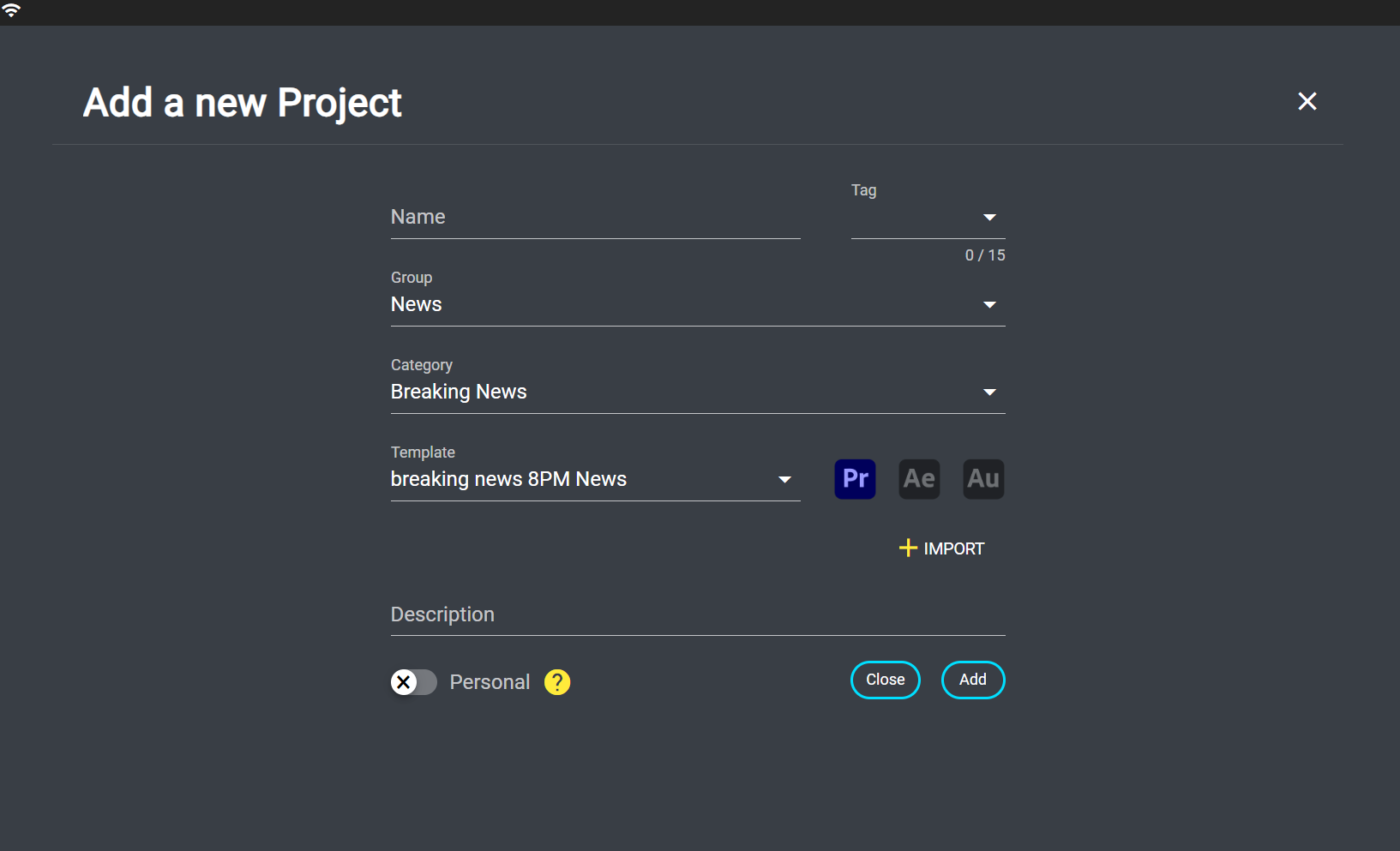
Example for Add Project Dialog -
After the user has selected “Add” the new Premiere project will be created based on the selected template.
-
At the same time Helmut will automatically create a Premiere Collection in VidiCore. Thus there is always a 1:1 connection between a Premiere project managed within Helmut4 and the VidiCore Premiere Collection. The collection in Vidicore mainly serves the users in Vidispine components like MediaPortal to have a quick overview of Premiere projects and see which assets have been used within these projects.
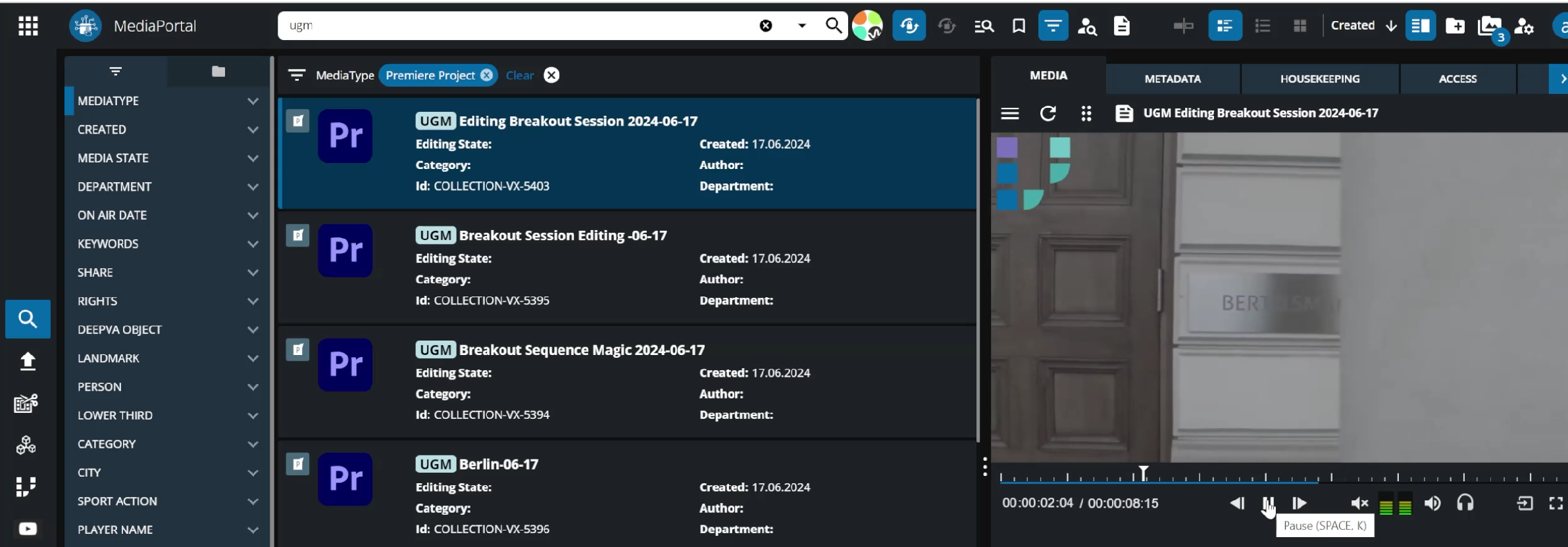
MediaPortal showing Premiere Project Collections incl. preview Please note: The main management of the Premiere project (incl. project file handling) is done by Helmut4 and not VidiCore but additionally Helmut4 will add a deletion lock to the VidiCore Premiere Collection and this deletion protection is inherited to all items within the collection. In that way its ensured that your media wont be deleted as long as it is part of the project.
-
Like described above, Premiere projects are opened from the Helmut UI.
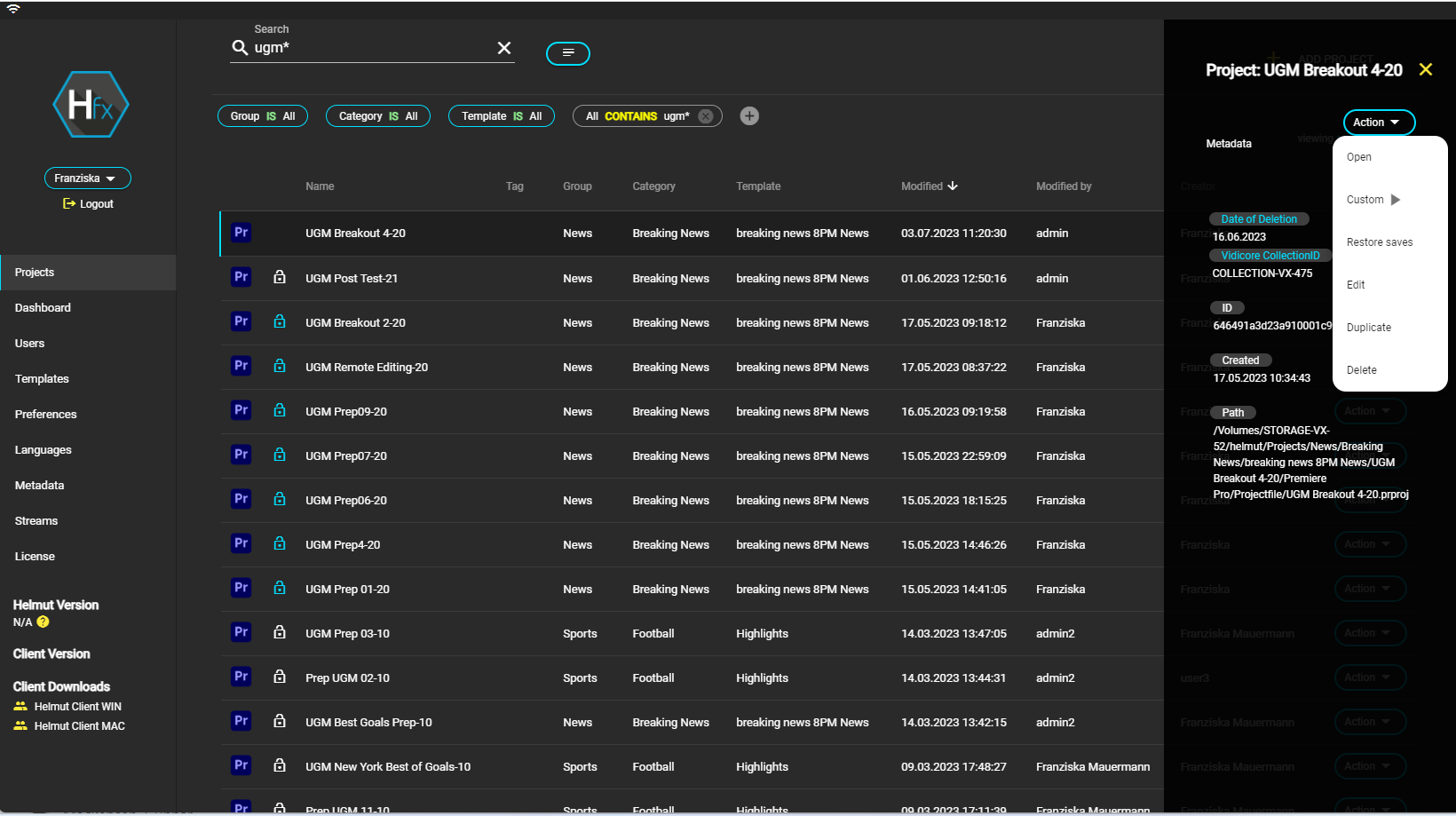
HelmutUI - Project overview & search Users just klick on the project name or click on “Open” from the menu and this will load Adobe Premiere with the selected project and with the corresponding user profiles. Depending on the configuration of Helmut4, it can automate among others e.g. that the right profiles and settings are used when Adobe Premiere is started.
Import content from VidiCore
After the project has been opened in Adobe Premiere users can easily add assets or collections to the project using the MediaPortal Panel. The panel can be seen as a simplified version of MediaPortal. It provides the same search components as those found in the full screen version so that users do not have to adapt to a different UI while relying on existing logic.
From the panel, users can:
-
Search VidiCore repository using filters
-
Preview material before importing into Premiere using the integrated streaming player
-
Import assets or complete collections to the project bin using the import button or context menu option.
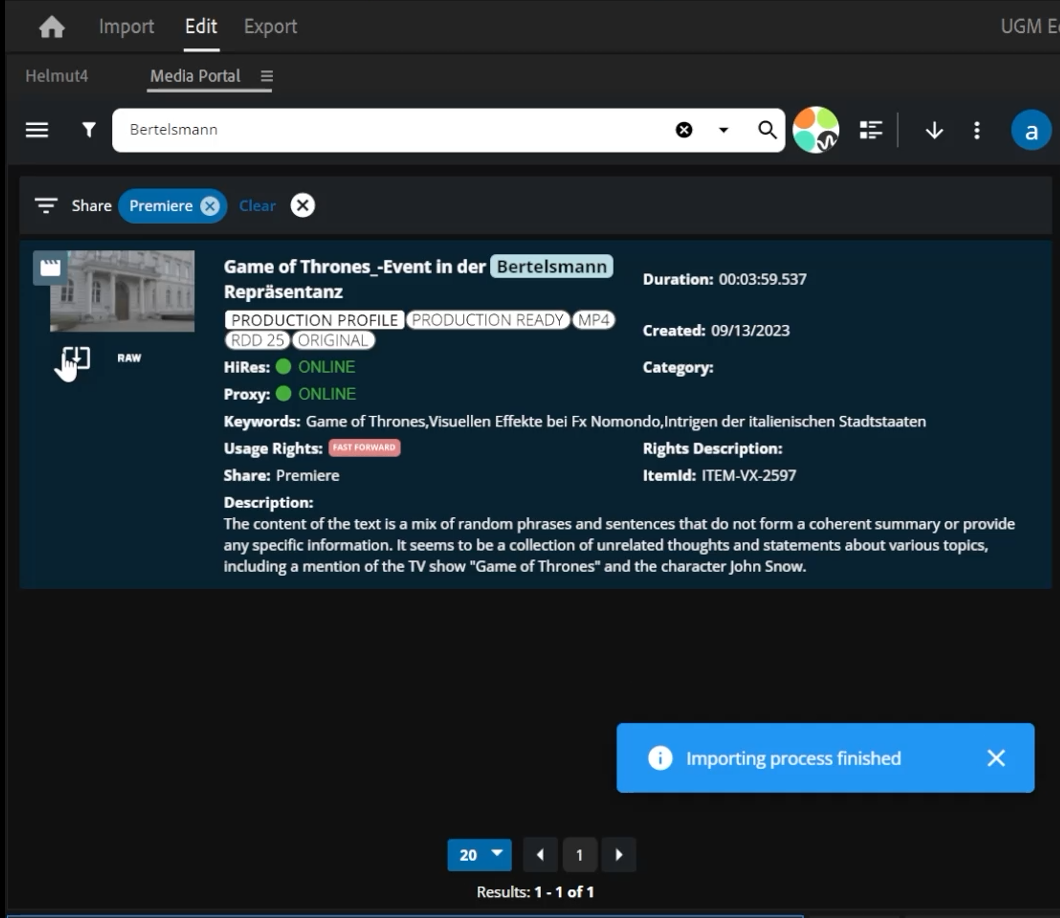
MediaPortal panel: import of a single item -
Additionally segment information (such as markers, events) is available for better orientation and depending on configuration those markers are imported with the video to Adobe Premiere.
-
Every time users import material; they could monitor the process in the Helmut Dashboard which displays the import’s progress. When working with file references and mounted storages this process is very quick.
-
Each time content is imported to Premiere, Helmuts Auto Ingest workflow running in the backend recognizes the new content and analyse if the content is coming from VidiCore or if new local files have been added. In case of MediaPanel Import, Helmut4 recoginizes that the content is already available in Vidicore. Helmut4 will add the item reference to the Vidicore Premiere project. All items within the VidiCore Premiere collection inherit the deletion locks so that they wont be deleted as long as the project exists.
-
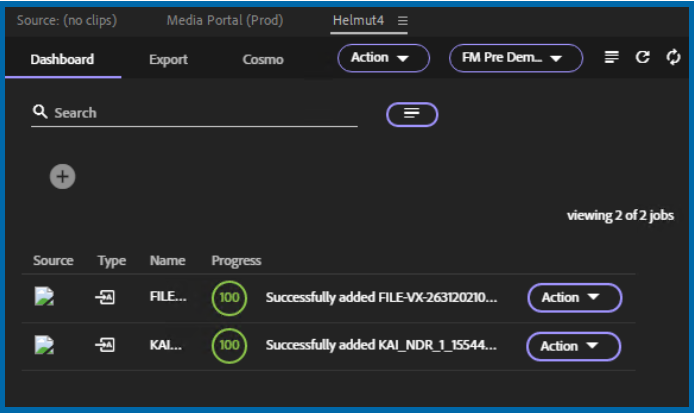
Figure 6 – Dashboard inside the Helmut Adobe Panel -
Now the editor can use the assets in the timeline and edit the sequence using Adobe Premieres features.
Import of local content
Naturally, editors are not limited to only using files available in the media repository available through MediaPortal. They also have the possibility of adding local files to their project/sequence, in which case Helmut4 will automatically checkin the assets to the central media repository managed by VidiCore. VidiCore then automatically manages the necessary transcoding processes, checks technical parameters, or runs configured workflows - with Helmut dashboard displaying the progress of these processes.
Details:
-
Adobe Premiere users can use the standard Premiere Import feature to add content to their project.
-
Helmut4 recognizes if new content is added to the project and this triggers the Helmut4 Auto-Ingest stream. The workflow again is highly configurable so that it meets the customers requirements. A very common workflow looks like this:
-
Helmut4 checks the format of the file and if only special file formats are excepted (e.g. a house format) it will trigger Adobe Media Encoder with predefined EPRs to transcode the file accordingly.
-
Alternatively transcoding of files could be done with a central transcoding farm managed by Vidispine components. In that case Helmut4 would trigger VidiFlow to do so.
-
Helmut4 could copy the file to the central storage and relinks file paths within the project so that the file paths will point to the centrally stored asset and not the local asset anymore.
-
Helmut4 creates a new item/shape/file in VidiCore and adds the item to the right VidiCore Premiere Collection
-
Helmut4 triggers a VidiFlow import workflow. This workflow again is highly customizable, among others the workflow will create proxy files for the item and create keyframes.
-
Please note: if the project was started in proxy mode the local hires will be used for playback until the proxy is available. Users need to have access to hires storage in order to have this workflow working
-
Publish / Export of Sequences
For most customer systems users start the rendering process in the Export tab of the Helmut Panel from Premiere. From here, users may add metadata, as well as select consequent workflows (depending on the system’s configuration). Now its up to the system configuration if the timeline is rendered locally or centrally using a render farm. In both cases Helmut is controlling this process by triggering and monitoring Adobe Media Encoder (farm). Users can see the process from their integrated dashboard available in the Dashboard tab of the Helmut panel in Adobe Premiere.
Helmut could also distribute the rendering process across all AME clients. In that way the rendering process is speed up using clients that would be otherwise momentarily idle.
As Helmuts workflows are very flexible its again up to the customers configuration where the rendered media files are stored and what additional workflows are triggered. Commonly in the combination with Vidispine, Helmut will trigger Vidiflow to create a proxy file from the rendered media file and also create keyframes and perform a proper ingest process. Once the full publish workflow is performed, uses will see it from their Dashboard.