
General
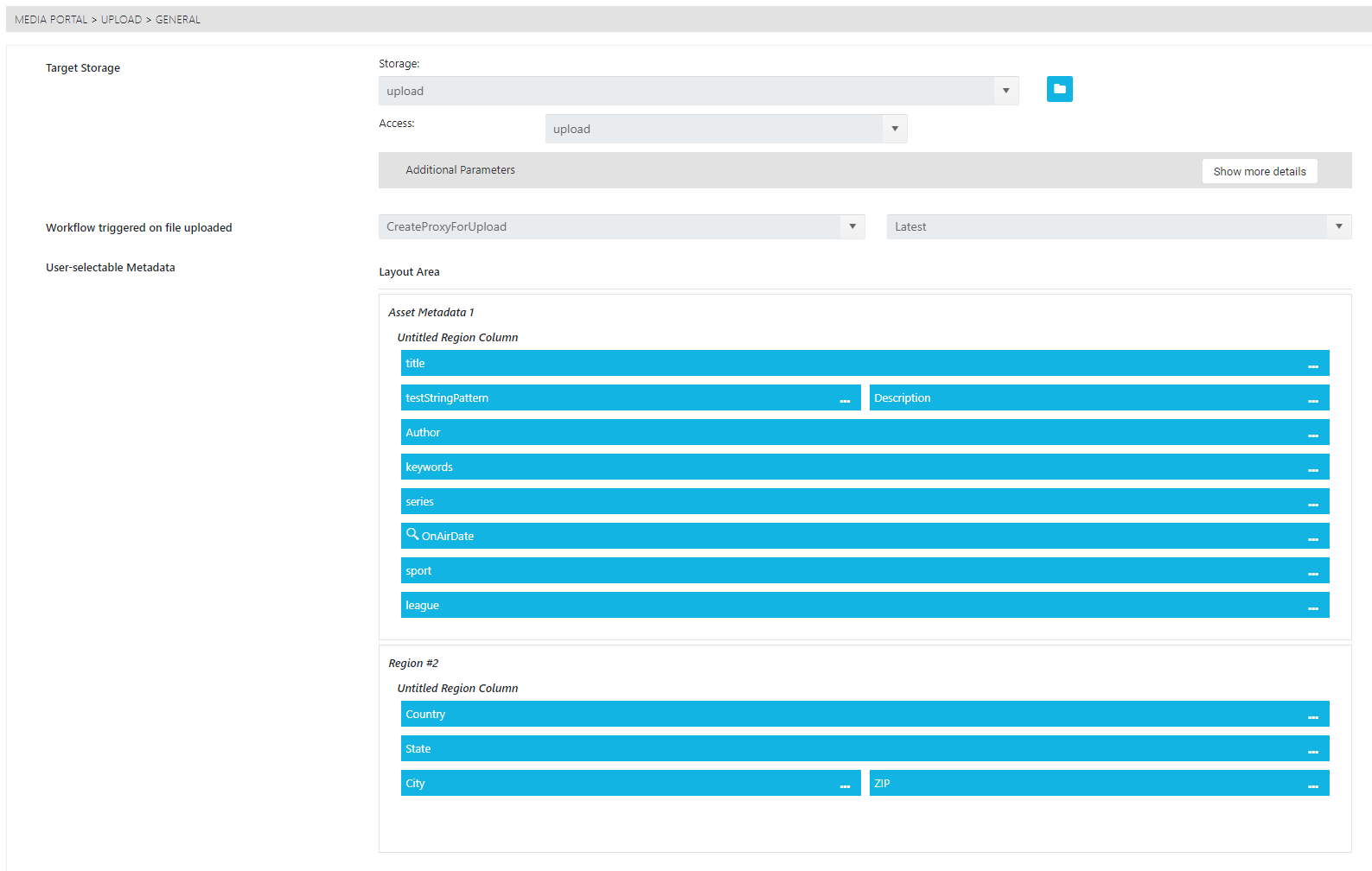
This configuration allows one to define under which conditions an upload is performed. An administrator can specify to which storage the file will be uploaded first, which workflow is triggered, and which metadata can be assigned by the user.
-
Target Storage: Select one of the previously configured storages as the destination for the upload.
-
Workflow triggered on file upload: Select previously configured VidiFlow workflow which is triggered on the uploading file.
-
Metadata: Define in the Metadata View Builder which metadata the user can insert. It is possible to define via the context menu which metadata is mandatory,or if rules for input apply by a RegEx pattern. Also, default values can be defined.
The layout defined under general serves as a default view if no other upload form has been defined.
Upload Forms
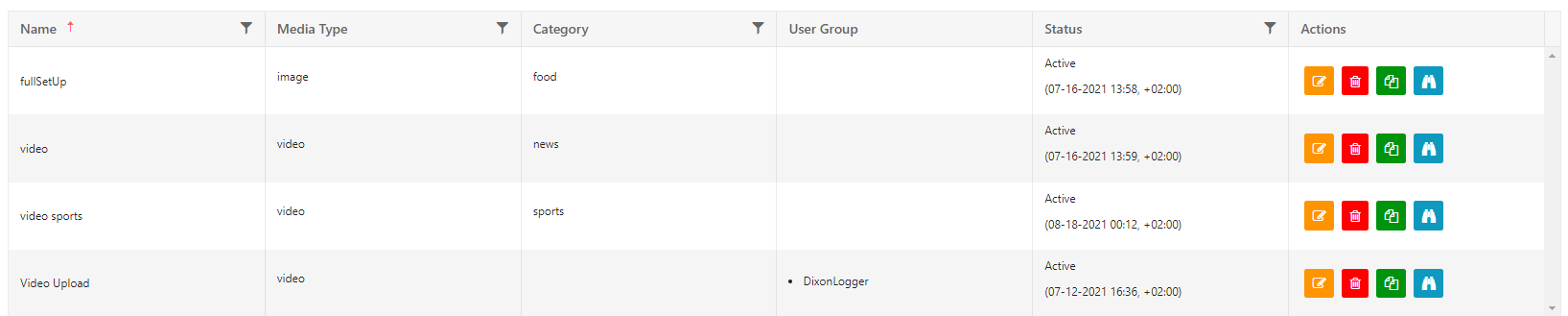
There can be different forms for different media types, categories and user groups. Depending on the criteria, the metadata form and workflow will differ.
-
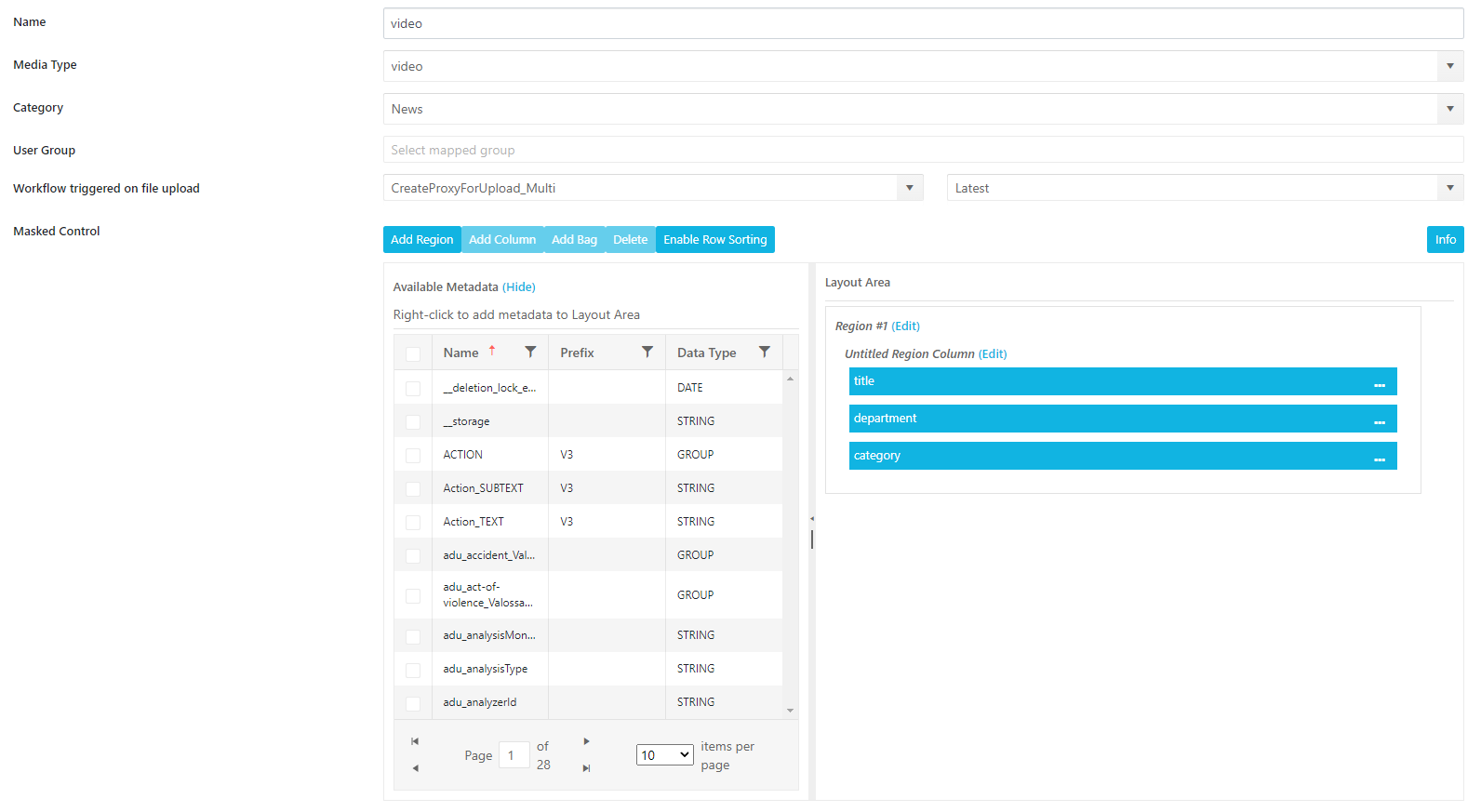
Name: Defines display in ConfigPortal.
-
Media Type: Different views for different media types.
-
Category: Different views for different Category Metadata.
-
User Group: Different view for existing user groups.
-
Workflow triggered on file upload: Select a pre-defined workflow which is triggered based on the criteria. Different workflows for image and video are for example possible with this.
-
Mask Control: Define metadata to display.
Trigger Workflow When Uploading into New Collection
When performing an upload into a collection it is possible to trigger an additional VidiFlow workflow that runs based on the Collection ID after all items have been successfully uploaded.
Accepted file extensions
Define which file extensions can be uploaded. Create a white list, which defines the different formats that can utilized for a upload via the MediaPortal.

Generate thumbnails as per defined by shape tags
Define if the Import Job should create the thumbnails based on the HiRes or if this should be handled within the triggered workflow

Additional Parameters for Upload Performance and Access (ConfigPortal > MEDIA PORTAL > UPLOAD > GENERAL):
-
Possible Types: Define allowed upload types.
-
Allowed Collection Types: Set selectable collections.
-
Parallel Threads: Configure concurrent upload threads.
-
Chunk Size: Define file chunk size.
-
Use VSA: Enable Vidispine Storage Agent for uploads.
-
Enable Access Rights: Allow setting ownership during upload.
Non-Stiched Camera Card Upload
-
Navigate to ConfigPortal > UPLOAD > CAMERACARD.
-
Locate the setting Use Non-Stitched Mode.
-
Set Use Non-Stitched Mode to True to enable the non-stitched ingest workflow.
VSA Location Selection
-
When configuring the ingest location:
-
Select from the existing VSA Locations.
-
The selected location assigns the appropriate Storage ID.
-
The upload process will then automatically apply the assigned VSA Settings to handle storage allocation and processing.
-
Considerations
-
Ensure that sufficient storage is allocated to handle multiple individual files created during the ingest.
-
Verify that downstream systems (editing, MAM, automation) are prepared to handle sequences and individual clips rather than stitched single items.
Enable VSA Upload:
-
In ConfigPortal > UPLOAD > GENERAL or UPLOAD > CAMERACARD
-
Set Use VSA Upload to True
Assign VSA Locations:
-
Assign Storages with VSA Method (VXA) to upload locations.
-
These locations will appear as selectable destinations during upload.
Attach File via context menu
MEDIA PORTAL > CONTEXT MENU ITEMS > CONFIG
-
Append File: Set behavior to append the uploaded file to the selected item or create a new item.
-
Workflow Triggered on Upload: Select which Ingest Workflow processes the uploaded file.
-
Select File Extensions: Define which file types are allowed for upload through this feature.