Reaching the Create a Booking Area
The Create a Booking area can be reached from the main UI by selecting the “Create a Booking” option (2) from the “Actions” dropdown (1).

The Create a Booking Area Overview
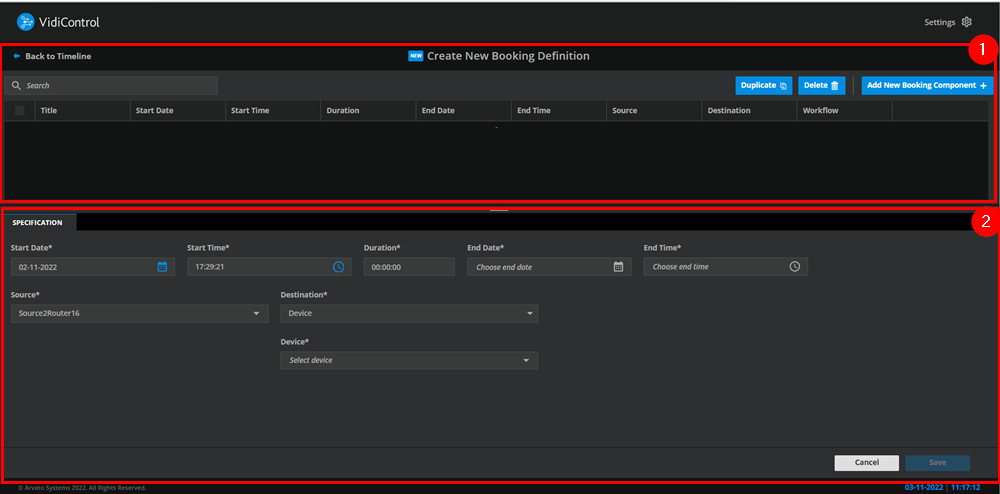
The screenshot below represents the entirety of the Create a Booking area.
The area can be broken down into the following sections:
-
Search (1)
-
Specification (2)
Section: Search
This section of the area enables users to find specific bookings components (Key Concepts | Booking Component).
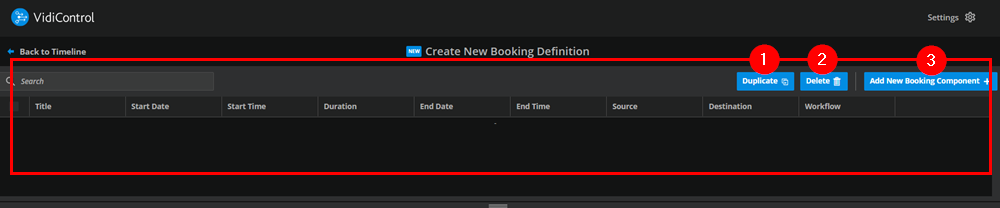
Based on the matches displayed in the search result list, users can then perform the following actions.
-
Duplicate (1): Selecting a specific item, users can use the values for an existing booking component and prefill their new booking component.
-
Delete (2): Selecting a specific item, users can choose to delete an existing booking component.
-
Add New Booking Component (3): This gives you the option to create an empty booking component.
Section: Specification
This section, which acts a tab, can be used to specify the main parameters for each booking component. Users can have these prefilled by selection the “Delete” action in the search section.
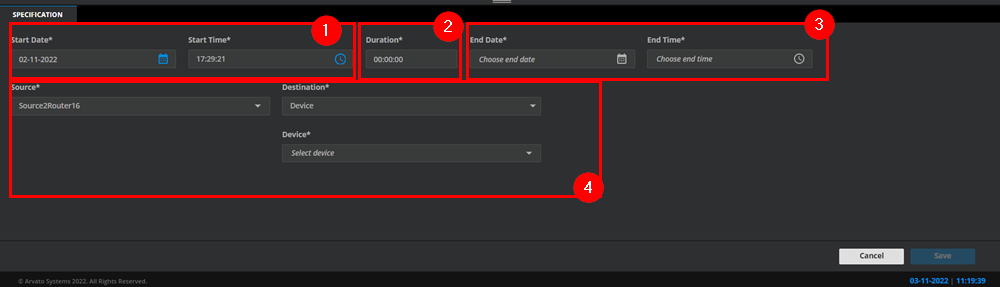
The following fields are available:
Start Date/Time (1): These specify the starting date for the booking component to begin recording.
Duration (2): This specifies how long the recording must last once initiated. This can be used as an alternative to the end date/time parameter.
End Date/Time (3): These specify the end of the recording. This can be used as an alternative to the duration parameter.
Source and Destination (4): This specifies the ingest source for the booking component and the intended recording. The destination parameter specifies the devices or allocation of devices (port) in the form of a pool used for the recording.
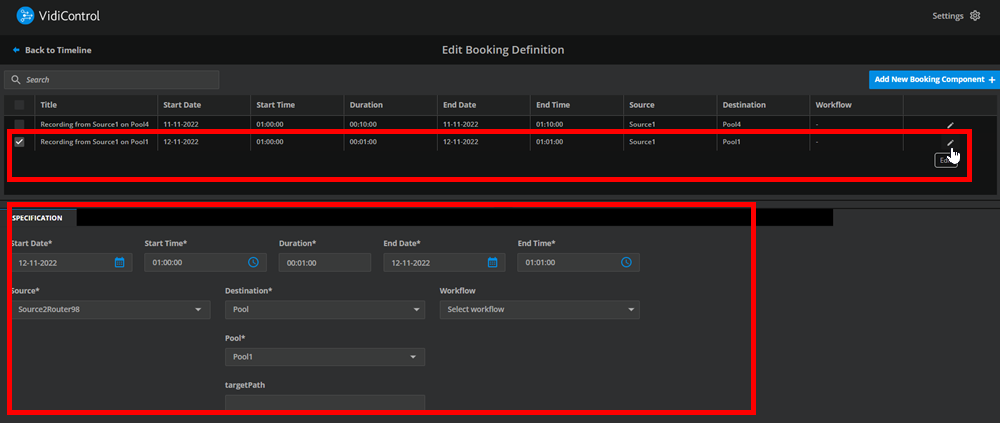
Acting as tab, is anchored to the booking component one is either creating or selected for editing. As such, switching to a different booking component in the list will express the respective values in the specification tab.