
Workflow Description
The new Maintenance Booking feature allows users to reserve a time slot on a recording channel for maintenance or other non-recording purposes. When creating a booking, users can specify a start time, end time, and title to describe the nature of the reservation. During the booked period, the channel is marked as unavailable for regular recording or streaming activities, ensuring that no conflicting jobs are scheduled. This helps avoid interruptions or conflicts during planned maintenance windows and provides better control over channel usage.
Motivation and Considerations
The Maintenance Booking feature supports operational planning and improve infrastructure reliability. In complex recording environments, it is essential to have dedicated time slots for system maintenance, upgrades, or testing—without risking interruptions to scheduled recordings or automated workflows.
By allowing users to explicitly block a channel for a defined period, the feature ensures:
-
Avoidance of scheduling conflicts with live recordings or streams.
-
Increased operational transparency, with clearly labeled maintenance periods.
-
Improved planning for both technical and production teams.
When implementing this feature, care was taken to ensure that maintenance bookings are clearly visible in the user interface, can be easily managed or deleted, and respect existing priority rules within the scheduling engine. This ensures seamless integration with the existing booking workflow while providing an additional layer of control for system operators.
Use Cases Step By Step
Note, that maintenance bookings are only available for devices which have a LockDevice capability attached. See Managing Capabilities for details.
Creating a Standard Maintenance Booking
Once you’ve reached VidiControl’s timeline area, determine which source should be blocked for maintenance.
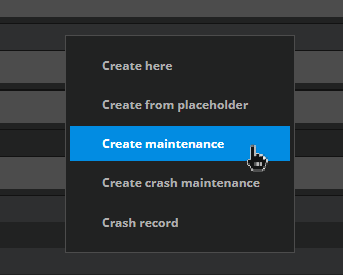
Right-Click on the desired channel and select “Create Maintenance” from the context menu:
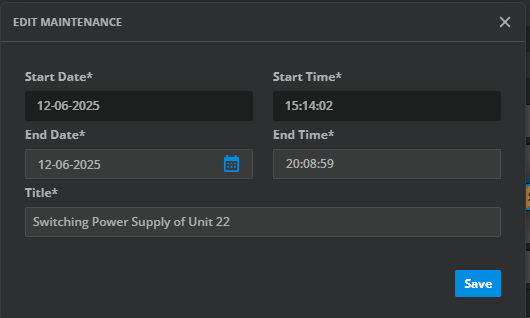
A dialog opens. Provide Start and End date and time and a title (brief description of the maintenance or reason):
Press “Save” to confirm. The Maintenance Booking appears on the timeline:

Maintenance periods are prominently indicated on the timeline, with titles and times accessible through tooltips or labels. Crash bookings, while visually similar, begin immediately upon creation.
Creating a Crash Maintenance Booking
Once you’ve reached VidiControl’s timeline area, determine which source should be blocked for maintenance.
Right-Click on the desired channel and select “Create Crash Maintenance” from the context menu.
This will immediately start a maintenance booking at the current time. The block appears instantly on the timeline and can be:
-
Edited (to adjust start/end time or title)
-
Stopped manually via context menu
The default duration for crash maintenance is specified in the Configuration settings, with a standard duration of 60 minutes. For further details, please refer to Config Values and the UiDefaultMaintenanceLengthInMinutes parameter.
The Title of the Crash Maintenance Booking is created using a default title template, see Title Templates.
Editing a Maintenance Booking
Navigate to an existing maintenance booking.
Edit using the Dialog
-
Right-click a maintenance booking and select Edit.
-
Alternatively, double-click on the maintenance booking to open the dialog.
-
Modify start, end, or title.
-
Save your changes.
Direct Timeline Interaction
-
[Shift] & Drag to move the booking in time or to another supported channel.
-
[Ctrl] & Drag to clone the maintenance booking.
-
Resize by adjusting the edges.
Changes on the timeline are saved automatically.
Managing a Maintenance Booking via Context Menu
Actions are determined by the current Maintenance Booking Status:
|
Status |
Available Actions |
|---|---|
|
Maintenance is planned for the future |
Edit, Delete |
|
Maintenance is currently ongoing |
Edit, Stop |
|
Maintenance is in the past |
Edit, Delete |
Edit: Opens the dialog.
Stop: Ends the ongoing booking immediately.
Delete: Removes it entirely.
Notes and Limitations
-
Recording and streaming jobs are blocked during maintenance.
-
Moving Maintenance bookings to other channels is restricted to compatible channels.
-
Overlapping maintenance is not allowed.
-
Crash maintenance should be adjusted after creation to reflect actual maintenance scope.