
MediaPortal offers a feature to ingest camera cards and their associated clips as a structured container into the system. Depending on the system design and the configuration of the feature the functionality can differ. Essentially 2 kind of modes need to be differentiated here:
-
stitch mode
-
non stitched mode
Those basically differing from each other while in stitched mode it is expected to have consolidated video files for all clips of the camera cards. While in non stitched mode the individual clips are existing as independent files.
Please note that MediaPortal supports both modes while processing the upload differently but MediaPortal is not responsible for creating consolidated files while stitching or encoding or doing transcodes for example. This is controlled via VidiFlow and VidiCore backend.
Following sections explain the stitched mode first while then especially concentrating on the non stitched mode.
Stitched mode
Currently supported formats
MediaPortal currently supports Sony XDCam and Sony SxS and Panasonic P2 Card camera cards in stitched. When a P2 Card is connected, the system automatically detects its content and identifies the OpAtom clip structure. For each video clip, a single item is created that includes video and its corresponding audio components. Upon completion of the upload process, the system groups all clips into a collection and generates a sequence document. This structure simplifies content organization and enables seamless integration into post-production workflows. Other types of media cards can still be imported, but they will be treated as generic cards. Generic card imports will require individual clip selection, as their media will not be automatically grouped.
Functionality Overview
-
Users can select the camera card function from the side navigation panel. Media can be added by selecting a folder from the list or by dragging and dropping it from Windows Explorer (on Windows) or Finder (on Mac OS).
-
Automatic Detection: When a supported Sony card (Sony XDCam or Sony SxS) is detected, MediaPortal will recognize and display the card’s file structure and technical metadata automatically.
-
File List for Unsupported Cards: If the media card's structure is not recognized, MediaPortal will display a list of supported file types as individual items, allowing for manual selection.
-
Clip Selection: Users have the ability to select or deselect individual clips from the card before initiating the upload process.
-
Metadata Management: A single metadata form is provided for the entire card. There is no need to enter metadata for each individual clip.
-
Upload Process: Once the upload is initiated, all selected clips are uploaded as items within a collection (which is later hidden). The card is represented as an individual item, with a sequence attached to it for organizational purposes and representing the camera card structure
-
Post-Upload Options: Depending on the system configuration, MediaPortal can initiate a workflow that stitches individual clips together and creates a continuous proxy. However, the original clip structure is retained as metadata, which can be utilized in editing programs like Adobe Premiere or VidiEditor.
VSA Upload
The VSA Transfer feature enhances upload flexibility, particularly in hybrid setups. By bypassing the VidiCore web server, it establishes a direct connection between the user client and an on-premise storage location using a VSA (Virtual Storage Appliance). This method reduces egress costs and provides faster upload speeds for large media files.
In the Upload Dialog, users can:
-
Add the Camera Card for upload.
-
Choose between:
-
VSA Transfer: Direct upload to a specific location configured in the system.
-
Web Upload: Traditional upload via the web server.
-
-
A default location for VSA uploads can be pre-configured in the ConfigPortal for convenience.
For more information on how to configure camera card uploads, see Camera Card Upload .
Non Stitched mode
Basically the GUI in non stitched mode looks similar like in stitched mode described above, anyway the execution of processes needs to be handled differently in compare.
Currently supported formats
The Camera Card Ingest - Non-Stitched workflow allows users to ingest camera card material into Vidispine without creating a single stitched proxy or hi-res clip. This is particularly useful when maintaining the original structure of camera card material is essential for post-production workflows. MediaPortal currently supports Sony XDCam and Sony SxS camera cards in non stitched mode.
Ingest Process
Following figure shows an example of a camera card upload being being performed in non stitched mode:
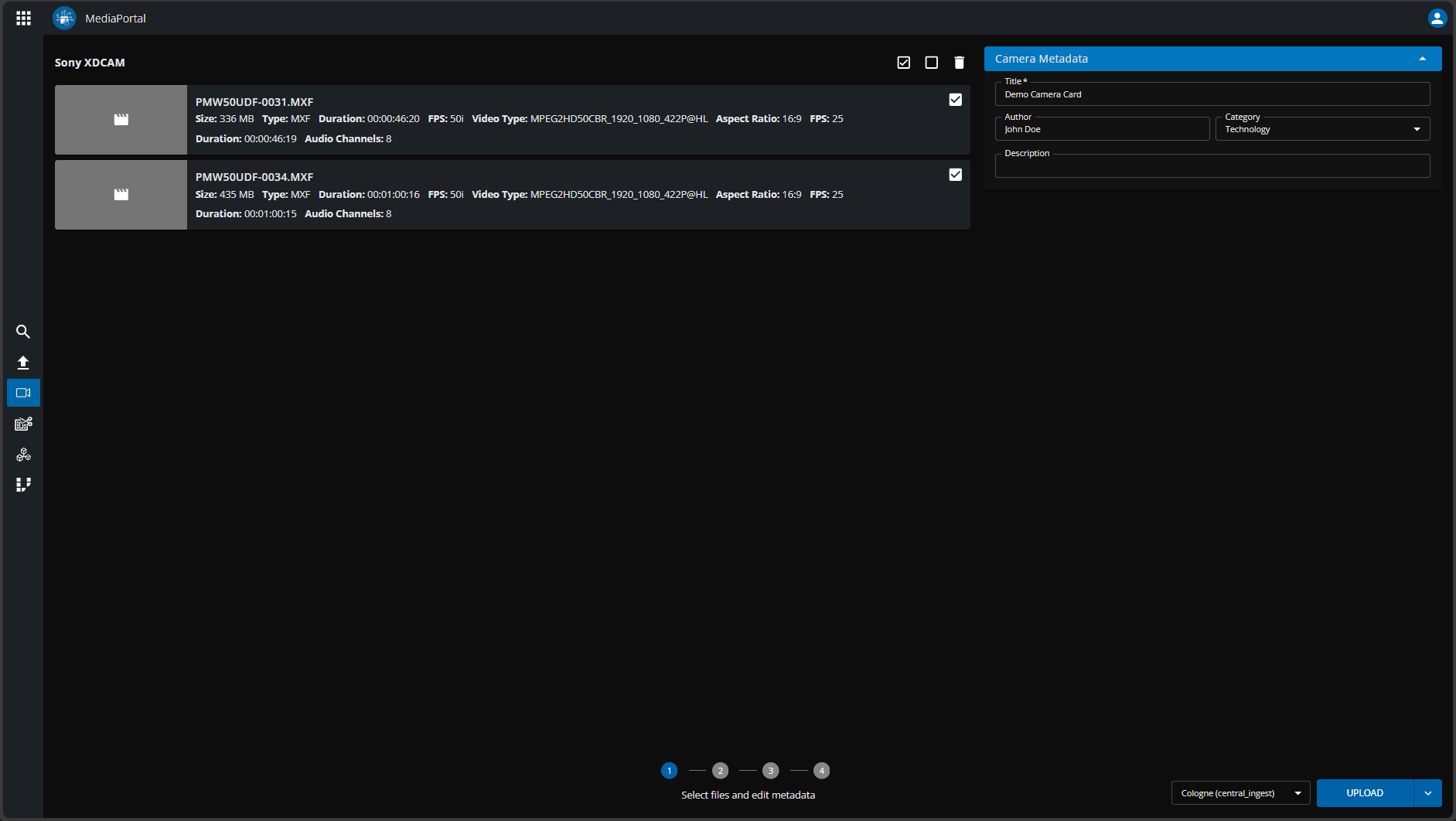
it can be split in 4 essential steps indicated also in the footer bar as stepper:
-
Select Files and Edit Metadata
-
Display card media and metadata in GUI
-
Analyze technical information of clips
-
-
Preparing the ingest
-
Create Camera Card item representing the card as one item
-
create placeholder item per clip
-
create Thumbnails if possible
-
create Sequence for playback
-
-
Upload
-
Transfer of the physical data
-
Start Workflow per clip
-
-
Finalize
-
Create wrapper collection
-
Trigger final workflow after last upload completed
-
Please note: Depending on the video file format it can happen that the technical file analyzation by the client cannot evaluate the technical information needed. In this case the technical data is later collected inside the workflow via the shape deduction of VidiCore. In result playback will be possible later in compare to tech data fetched inside the client.
Ingest Outcome
-
The system creates one Vidispine item representing the complete camera card.
-
No single proxy or consolidated hi-res clip is generated.
-
Instead, a Sequence Document and a MediaEditor Timeline Document are created to represent the original camera card structure.
-
All original files on the card are ingested as individual items with their original high-resolution files and automatically generated proxies.
Benefits
-
Preserves the original clip boundaries and structure from the camera card.
-
Enables finer-grained control for editing and media management.
-
Simplifies integration with editing environments that prefer native card structures.
Additional Information
For further technical details, visit: Camera Card Upload
Cancel Upload
Independent from the mode its possible to cancel a camera card upload when the stepper is on step 3 and already starts transferring data. Then the upload button toggles into a cancel button:
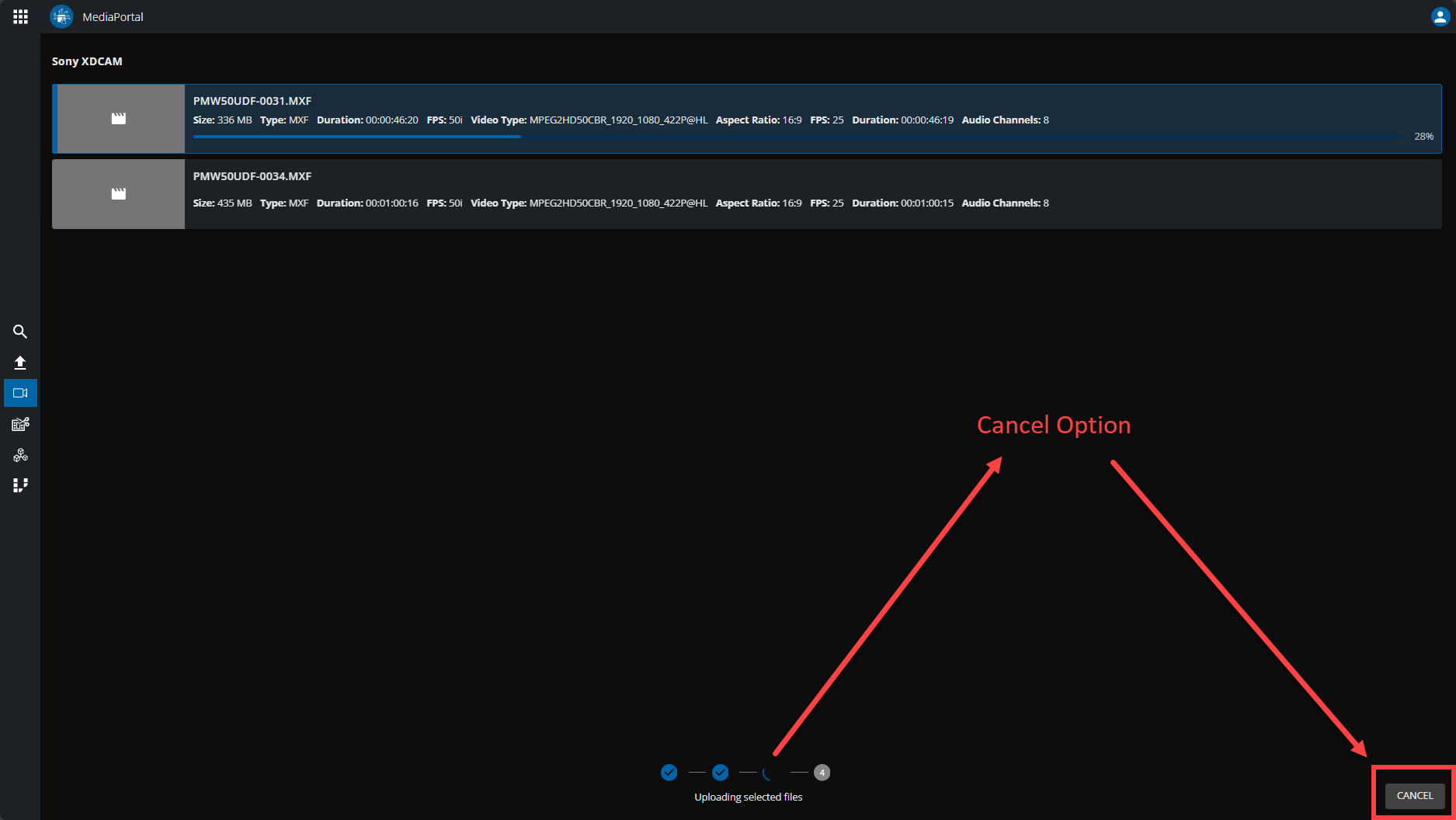
After clicking this button, the upload will stop and indicating the reason in the stepper information:
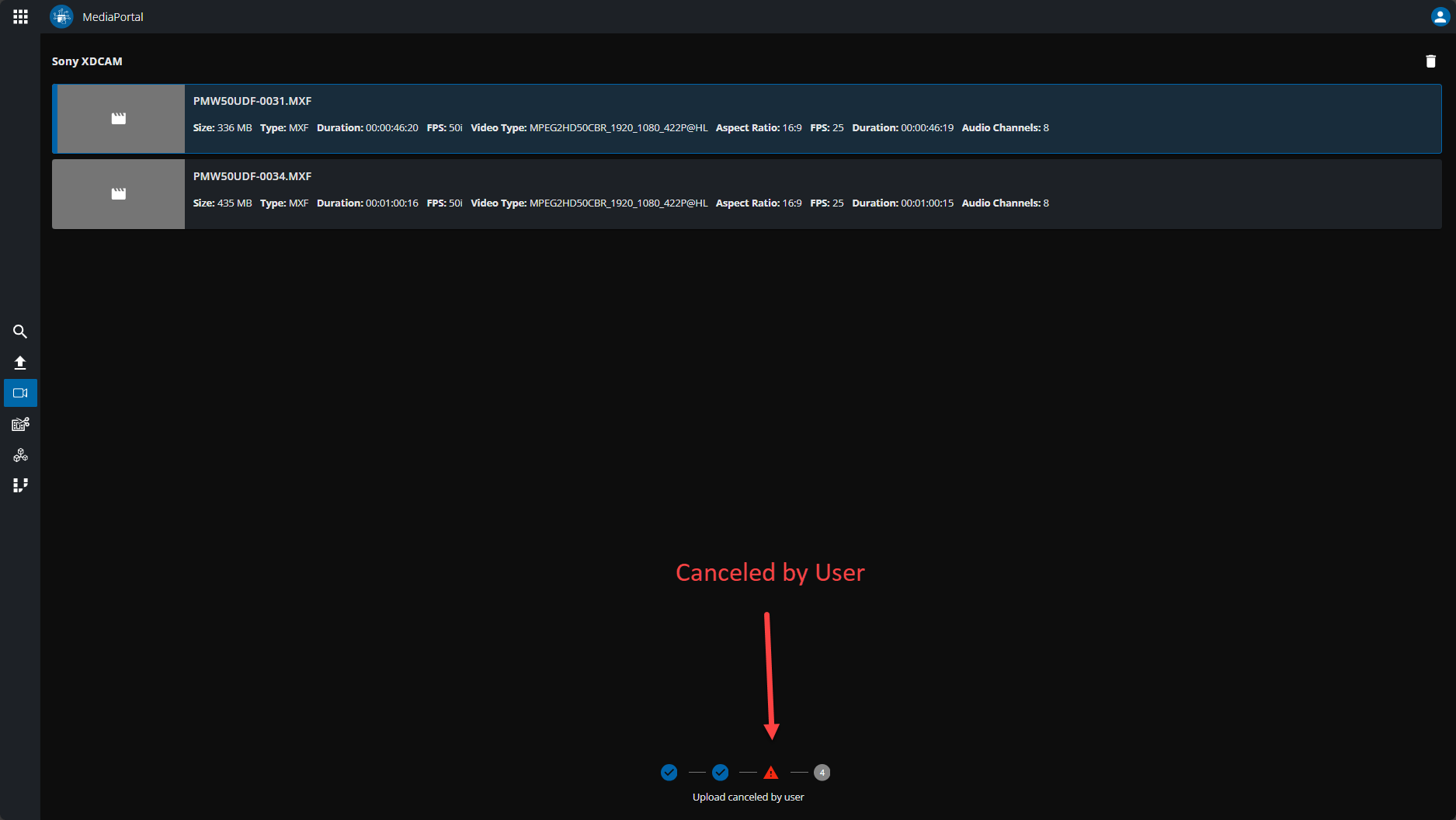
The user can start over while clicking the Thrash Bin icon on top of the page.