
EVS Playout
The EVS Playout module is a module that allows control of an EVS playout through a web service. Currently, the EVS is controlled by the LinX API, which is a .NET Framework DLL that cannot be directly used by a web browser. It is also not possible to use the LinX API inside a Docker Container. So the EVS Playout module has to run on a Windows machine, either hosted in an IIS as the preferred setup for a production system or it can be run as a self hosted service.
Setup
The installation of a EVS playout has done manually. The setup files are created as build artifacts and can be downloaded from the build pipeline (Pipelines - Runs for MediaComponent.PlayoutEvs). The artifacts contain 2 parts, PlayoutEVS-Standalone for the self hosted web service and PlayoutEVSWeb for the IIS hosted service.
The self hosted service
To install the self hosted service copy the PlayoutEVS-Standalone folder to the target machine. The configuration is done in the appsetting part of the Vidispine.Soco.Media.PlayoutEVS.exe.config file.
<appSettings>
    <add key="HttpPort" value="9000" />
    <add key="HttpsPort" value="9443" />
    <add key="ApiUser" value="apiuser" />
    <add key="ApiPassword" value="apipassword" />
    <add key="PlayoutEVSCertFile" value="PlayoutEVS.pfx" />
    <add key="PlayoutEVSCertPassword" value="PlayoutEVS" />
    <add key="PlayoutEVSDnsName" value="localhost" />
  </appSettings>
For the start simply execute the Vidispine.Soco.Media.PlayoutEVS.exe file.
For the first start with a new or changed configuration execute the Vidispine.Soco.Media.PlayoutEVS.exe file as an Administrator as some system settings have to be done. If you do not provide a SSL certificate (<add key="PlayoutEVSCertFile" value="PlayoutEVS.pfx" />) a new self signed certificate will be created.
IIS Hosted Service
Unfortunately the LinX API needs a very open firewall configuration so that it is not suitable to host it in IIS. This paragraph is only left for documentation purposes
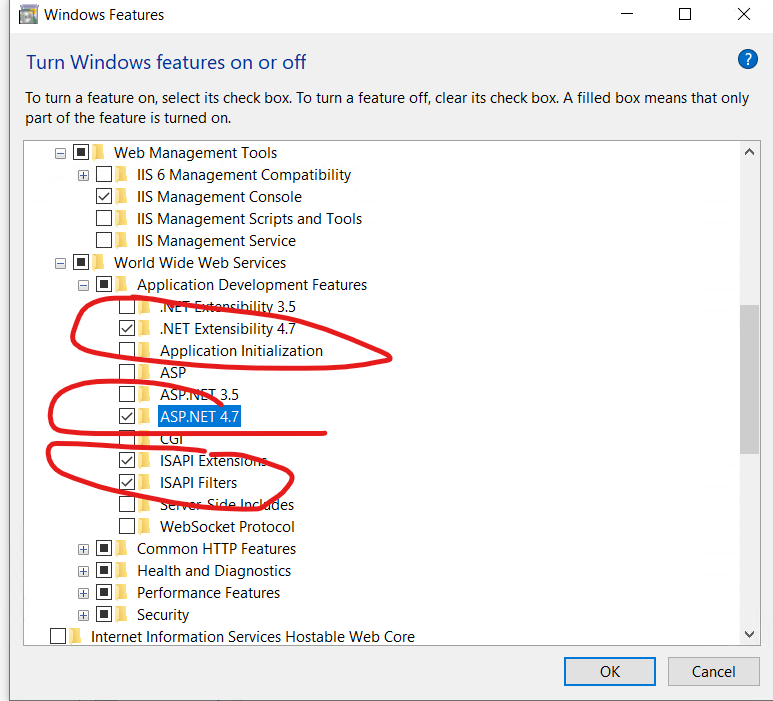
Enable the IIS Windows Feature
Copy the PlayoutEVSWeb folder to C:\inetpub\wwwroot
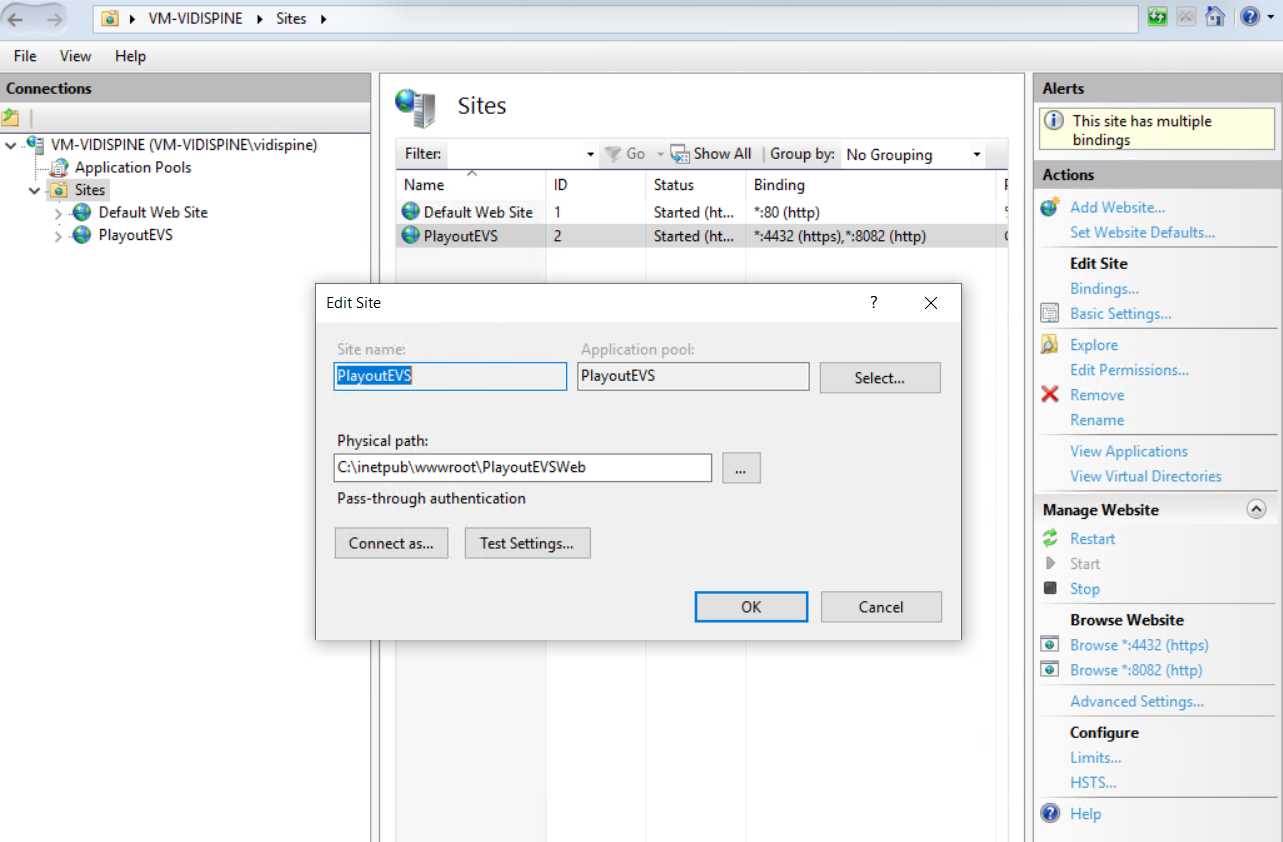
In the IIS Manager create a new Site (Here PlayoutEVS) that points to the C:\inetpub\wwwroot\PlayoutEVSWeb folder
Execute as Administrator
%windir%\system32\inetsrv\appcmd.exe unlock config -section:system.webServer/handlers
%windir%\system32\inetsrv\appcmd.exe unlock config -section:system.webServer/modules
Enable Windows features
Test
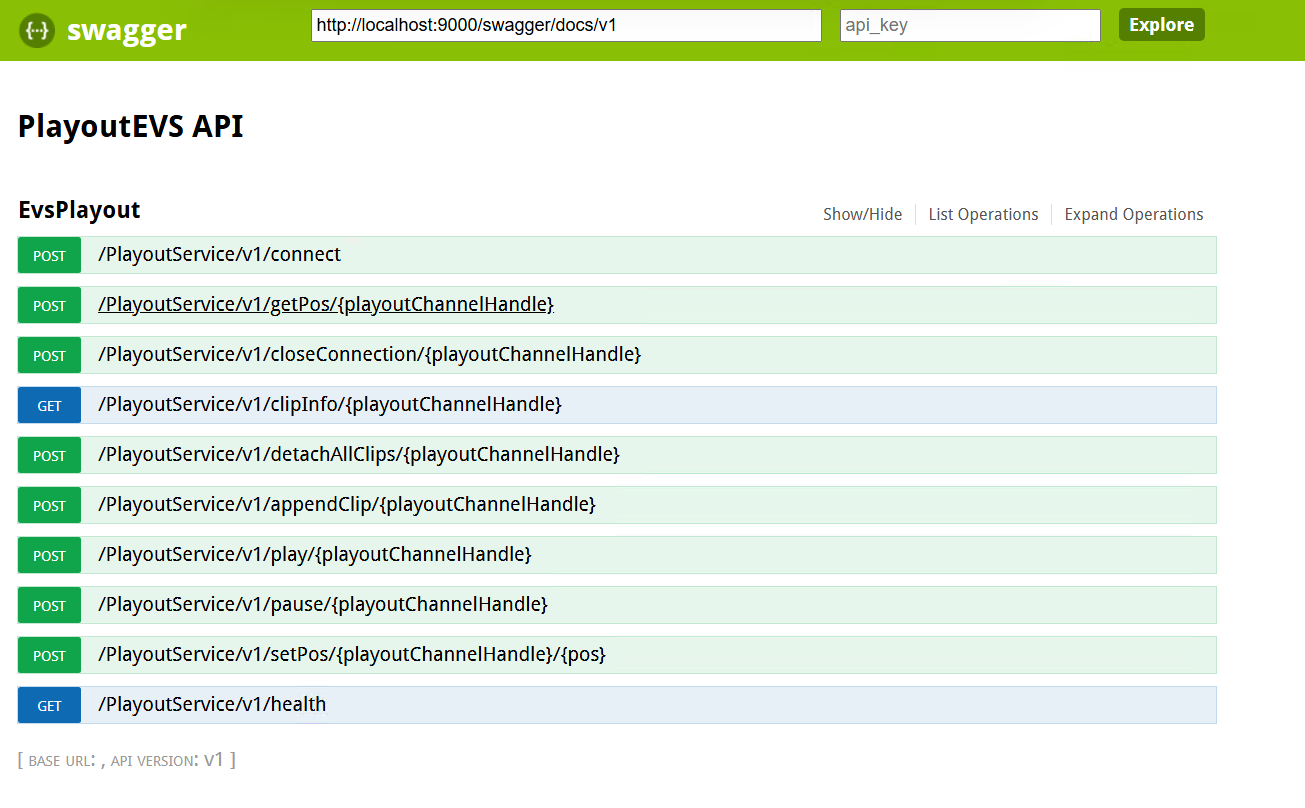
To test the service start a browser with the swagger url, i.e. http://localhost:9000/swagger
The connection string format is:
{
  "playoutServer": "",
  "playoutChannel": "<HostAddress>10.135.82.11</HostAddress><LocalAddress>10.135.82.43</LocalAddress><ChannelName>10</ChannelName><LinXSpipPort>3</LinXSpipPort>"
}
HostAddress is the IP of the server
LocalAddress is the local IP of the computer hosting the service. Can be left empty, only used when multiple network interfaces and not the correct one is used.
ChannelName is the LINX_LOGICAL_CHANNEL values as used in older API versions
LINX_LOGICAL_PLAYER_CHANNEL_1 = 0,
LINX_LOGICAL_PLAYER_CHANNEL_2 = 1,
LINX_LOGICAL_PLAYER_CHANNEL_3 = 2,
LINX_LOGICAL_PLAYER_CHANNEL_4 = 3,
LINX_LOGICAL_PLAYER_CHANNEL_5 = 4,
LINX_LOGICAL_PLAYER_CHANNEL_6 = 5,
LINX_LOGICAL_RECORDER_CHANNEL_MAX = 6,
LINX_LOGICAL_MIXPLAYER_CHANNEL_MAX = 6,
LINX_LOGICAL_NBCHANNEL = 6,
LINX_LOGICAL_PLAYER_CHANNEL_MAX = 6,
LINX_LOGICAL_RECORDER_CHANNEL_1 = 6,
LINX_LOGICAL_RECORDER_CHANNEL_2 = 7,
LINX_LOGICAL_RECORDER_CHANNEL_3 = 8,
LINX_LOGICAL_RECORDER_CHANNEL_4 = 9,
LINX_LOGICAL_RECORDER_CHANNEL_5 = 10,
LINX_LOGICAL_RECORDER_CHANNEL_6 = 11,
LINX_LOGICAL_MIXPLAYER_CHANNEL_1 = 12,
LINX_LOGICAL_MIXPLAYER_CHANNEL_2 = 13,
LINX_LOGICAL_MIXPLAYER_CHANNEL_3 = 14,
LINX_LOGICAL_MIXPLAYER_CHANNEL_4 = 15,
LINX_LOGICAL_MIXPLAYER_CHANNEL_5 = 16,
LINX_LOGICAL_MIXPLAYER_CHANNEL_6 = 17,
LINX_LOGICAL_CHANNEL_MAX = 18,
LINX_LOGICAL_NONE_CHANNEL = 19,
LinXSpipPort The SPIP port as in
LINX_SPIP_PORT_CTRL1 = 0,
LINX_SPIP_PORT_CTRL2 = 1,
LINX_SPIP_PORT_CTRL3 = 2,
LINX_SPIP_PORT_CTRL4 = 3,
LINX_SPIP_PORT_CTRL5 = 4,
LINX_SPIP_PORT_CTRL6 = 5,
LINX_SPIP_PORT_DB = 6,
LINX_SPIP_PORT_MGT = 7,
LINX_SPIP_PORT_MAX = 8,
LINX_SPIP_PORT_FIRSTLINXFREE = 256, // 0x00000100
LINX_SPIP_PORT_ALIGNON32BITS = 4294967295, // 0xFFFFFFFF
Additionally the following config values can be used:
LinXLogFlag
<LinXLogFlag>3</LinXLogFlag>
|
Bitmask specifying the log channels to activate
|
Default is 0.
LogFile
<LogFile>c:\temp\evs.log</LogFile>
Default is C:\EVS\Logs\LinX\PROCESSNAME\LinXLog.log
|
Specifies where to output the log. If the system can open this location as a file, the log message will be stored there otherwise the console will be used (same if pLogOutput_c[0]=0).
|
Update GEL 31.10.2025:
One has to create the folder “C:\EVS\Logs\LinX\Vidispine.Soco.Media.PlayoutEVS” manually.