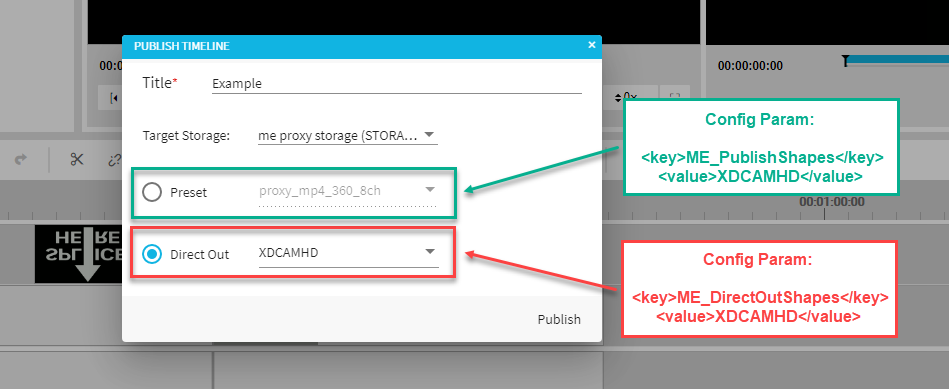
A very specific use case supported by VidiEditor is called Direct Out. It can be used for rough cut editing and will bypass different timeline settings to prepare a very raw edit version of the timeline that can be used for further editing on a full NLE station.
Imagine following situation:
-
Original shapes have 8 audio channels holding different version of audio -e.g.:
-
Different languages
-
Audio comments
-
-
A VidiEditor user usually selects the channels wanted for a mix down for 2 audio channels for each cut and gets a stereo audio mix on the final rendering.
-
When doing a rough cut the user wants to keep all 8 channels of the original source. This ensures all source channels are available for further editing.
-
On the direct out option various timeline settings will be ignored:
-
Audio Mix
-
Audio channels selection
-
Fades
-
Dissolves
-
Audio editing
-
Unlinked Segments
-
In result this workflow can be used to very fast produce a timeline with hard cuts and all original audio information for example to preselect best shots and needed interviews.
How to configure direct out?
In ConfigPortal VidiEditor → Publish Configuration the “Shape for Direct Out“ parameter must be configured to a suitable shape tag. In result it will appear as Direct Out option in VidiEditors publish dialogue.
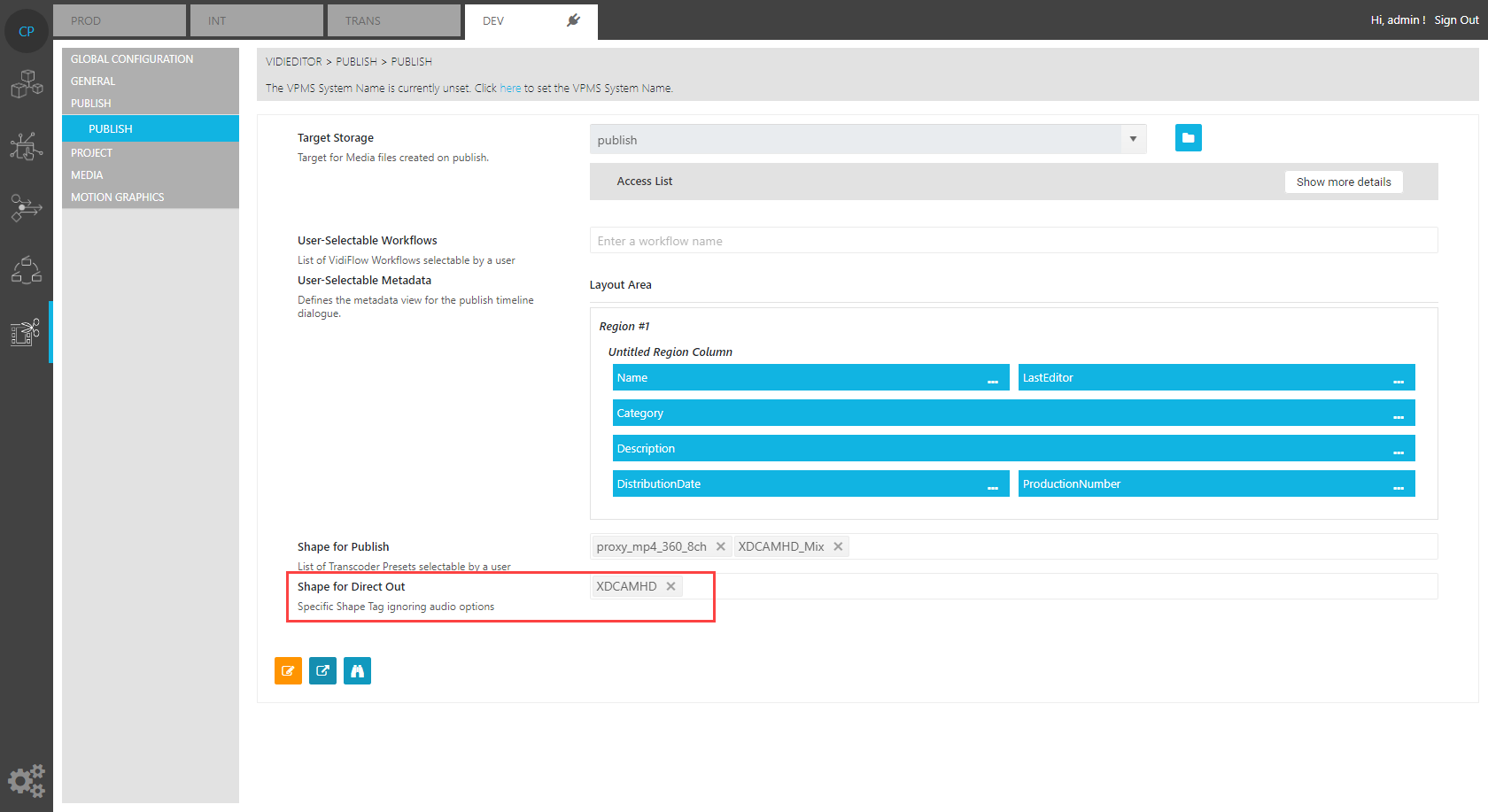
A suitable shape tag added on this parameter should not contain any mix information as this would result in a mix of the original audio channels. A shape tag for above scenario that produces a XDCAMHD file with all original source channels can look as follows:
<?xml version="1.0" encoding="UTF-8" standalone="yes"?>
<TranscodePresetDocument xmlns="http://xml.vidispine.com/schema/vidispine">
    <name>XDCAMHD</name>
    <format>mxf_ffmpeg</format>
    <audio>
        <codec>pcm_s24le</codec>
        <framerate>
            <numerator>1</numerator>
            <denominator>48000</denominator>
        </framerate>
    </audio>
    <video>
        <scaling>
            <width>1920</width>
            <height>1080</height>
        </scaling>
        <codec>nablet_mpeg2video</codec>
        <bitrate>50000000</bitrate>
        <framerate>
            <numerator>1</numerator>
            <denominator>25</denominator>
        </framerate>
        <gopSize>12</gopSize>
        <pixelFormat>yuv422p</pixelFormat>
        <preset>xdcam_hd_422_1920</preset>
        <setting>
            <key>flags</key>
            <value>+ildct+ilme</value>
        </setting>
        <setting>
            <key>top</key>
            <value>1</value>
        </setting>
        <setting>
            <key>dc</key>
            <value>10</value>
        </setting>
        <setting>
            <key>qmin</key>
            <value>1</value>
        </setting>
        <setting>
            <key>lmin</key>
            <value>1*QP2LAMBDA</value>
        </setting>
        <setting>
            <key>vtag</key>
            <value>xd5c</value>
        </setting>
        <setting>
            <key>rc_max_vbv_use</key>
            <value>1</value>
        </setting>
        <setting>
            <key>rc_min_vbv_use</key>
            <value>1</value>
        </setting>
        <setting>
            <key>minrate</key>
            <value>50000k</value>
        </setting>
        <setting>
            <key>maxrate</key>
            <value>50000k</value>
        </setting>
        <setting>
            <key>bufsize</key>
            <value>36408333</value>
        </setting>
        <setting>
            <key>bf</key>
            <value>2</value>
        </setting>
        <setting>
            <key>codecTagString</key>
            <value>xd5c</value>
        </setting>
        <setting>
            <key>mpv_flags</key>
            <value>+strict_gop</value>
        </setting>
        <setting>
            <key>noGopAdjustment</key>
            <value>true</value>
        </setting>
        <setting>
            <key>colr_primaries</key>
            <value>1</value>
        </setting>
        <setting>
            <key>colr_transfer_function</key>
            <value>1</value>
        </setting>
        <setting>
            <key>colr_matrix</key>
            <value>1</value>
        </setting>
        <setting>
            <key>renderQuality</key>
            <value>16</value>
        </setting>
    </video>
    <metadata/>
    <script></script>
</TranscodePresetDocument>
The VidiEditor publish dialogue in result will show another dropdown for direct out allowing the user to select one of the configured shape tags from the “ME_DirectOutShapes” config.