
In order to license and maintain your BYOC stack we suggest that you install the VidiCore Management Agent (VMA) on your Vidispine Server (or on a server next to it). The VidiCore Management Agent will act as a proxy between your Vidispine server and our VidiCore Management Server which is an integrated part of VidiNet.
The VMA-VMS components are needed in order to license BYOC systems.
-
The VMA connects outbound towards VidiNet using port 443.
-
Web proxying is supported.
The VMA needs two authentication configurations – one towards your local VidiCore API Server (username-password) and one towards VidiNet (Access Key – Secret Key). The procedure is as follows:
-
Install VMA
-
Download the suitable VMA package and install it on your Vidispine API Server (or on a separate machine).
-
-
Configure VidiCore API Server connection in settings file
-
Configure the VMA connection to your VidiCore API Server by editing the following values in the file
/etc/vidispine/management-agent.yaml(see example at the bottom of this email for syntax)-
vidispine.apiUrl -
vidispine.username -
vidispine.password
-
-
-
Configure VidiNet connection
-
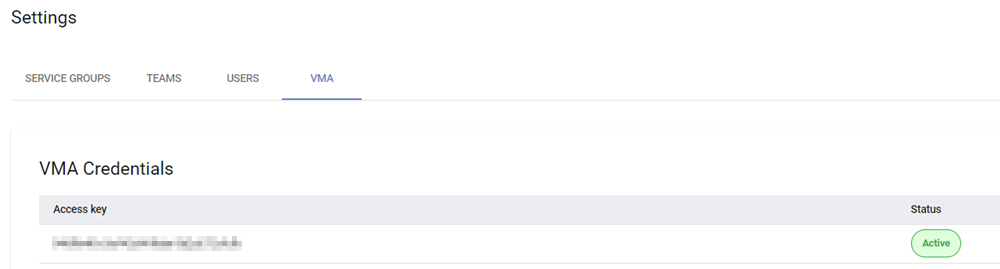
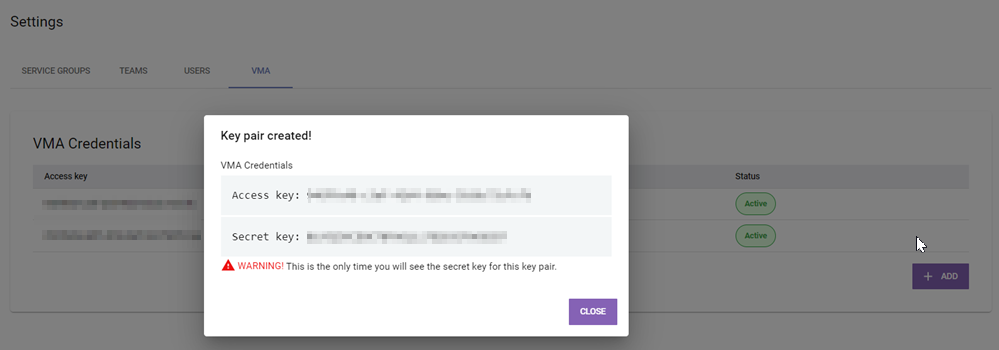
In the VidiNet Dashboard, go to “Settings” and create a VMA access key pair. Remember to copy the Access Key and Secret Key when they are displayed, you will only see the secret key once.
-
Configure the VidiNet connection by editing the following values in the file
/etc/vidispine/management-agent.yaml-
vidinet.systemId: f70890fb-4064-41f1-9986-36e36cc86a3d (A UUID) -
vidinet.systemName(You decide this, it is used to identify your system and will appear under “My Services” in VidiNet Dashboard and also be inserted into license key) -
vidinet.accessKey(obtained in Step 3a) -
vidinet.secretKey(obtained in Step 3a)
-
-
Save the configuration file
-
-
Start the VMA with command
systemctl status vidispine-management-agent.service. (VMA must be restarted if configuration file is changed) -
Verify the setup (can be done in multiple ways)
-
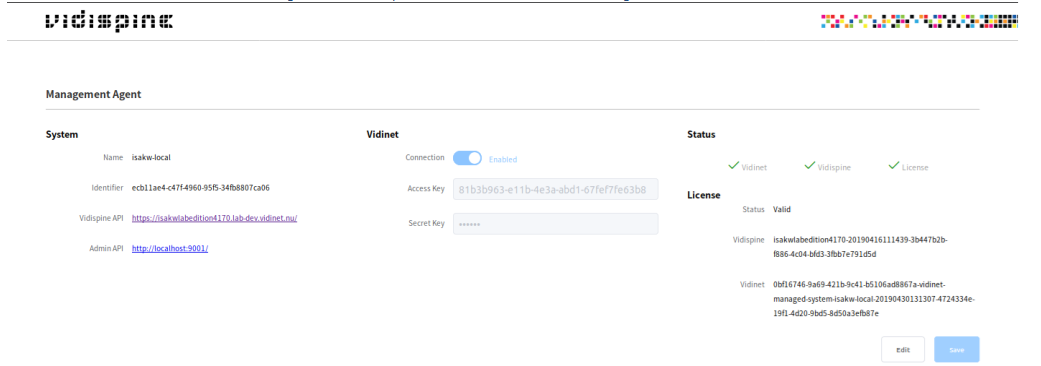
In the VMA: The VMA comes with a monitoring interface at http://localhost:9010/overview, see image below:
-
In VidiNet: In the VidiNet Dashboard, your local VidiCore system will now appear under “My Services” as a BYOC licensed system.
-
In VidiCore: Verify that your VidiCore Server is properly licensed by checking license info under /API/version (NOTE: it may take up to 10 minutes for the system to become licensed).
-
VMA Credentials in Settings
Please be advised that you will only be able to see secret for the key pair when generating the credentials.
EXAMPLE OF vidispine.management-agent.yaml FILE:
server:
  applicationConnectors:
  - type: http
    port: 9010
  adminConnectors:
  - type: http
    port: 9011

vidispine:
  apiUrl: https://localhost:9000/
  adminUrl: http://localhost:9001/
  username: admin
  password: admin

vidinet:
  enabled: true
  systemId: xxxxx
  systemName: test-local
  accessKey: xxx
  secretKey: xxx

logging:
  level: INFO
  appenders:
  - type: file
    logFormat: "%-5p [%d{ISO8601,UTC}] %c: %m%n%rEx"
    currentLogFilename: /var/log/vidispine/management-agent.log
    archivedLogFilenamePattern: /var/log/vidispine/management-agent-%d.log.gz
    archivedFileCount: 7
    timeZone: UTC
  loggers:
    com.vidispine.management.agent: INFO
-
*****************
Logs are written to /var/log/vidispine/management-agent.log.