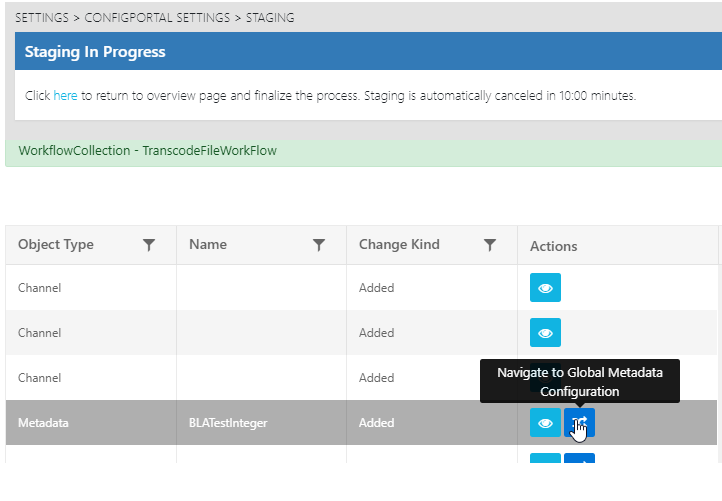
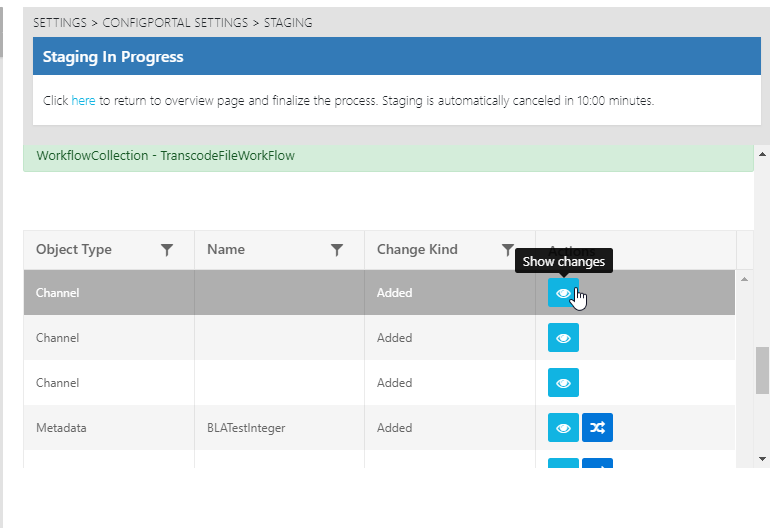
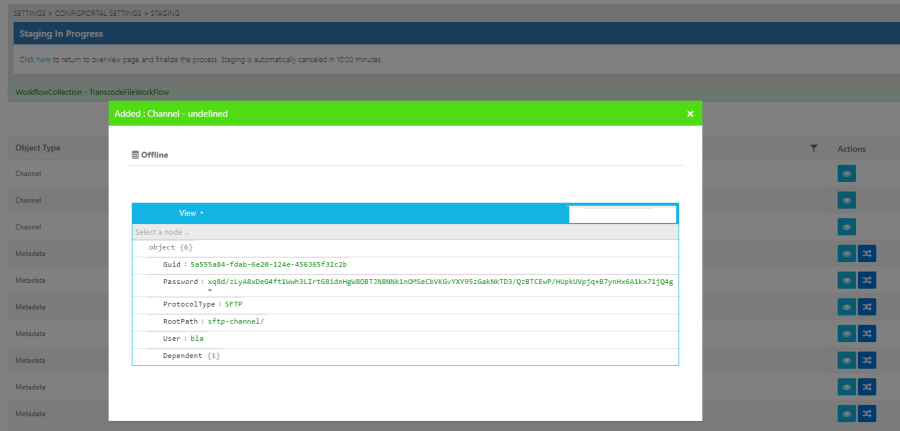
Clicking on the "Eye" icon will prompt a change window offering a before and after representation of the changes. The "Offline" table encompasses all of the changes contained in the uploaded configuration file, those changes the user intends to effectuate. If a change is classified as "Added", as is the case with the example below, then there are no current configurations. Hence, no "Online" version of the configuration change.
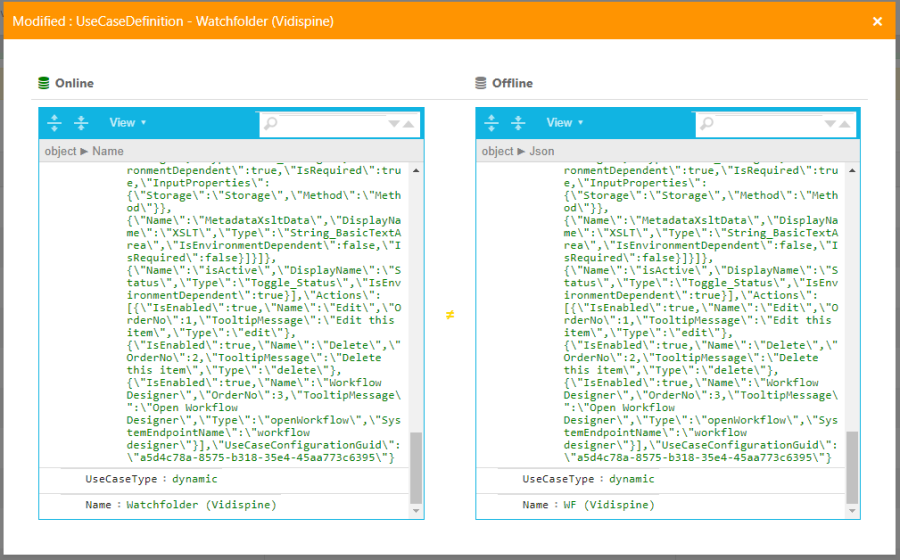
If a change is classified as having modified a current, "Online", configuration, both the current and new, "Offline" configurations are displayed side by side. This makes it considerably easier for users to be able to compare the two.
Alternatively, users are able to effectuate changes before initiating the merge step of the Staging process. This can be done by selecting the "Helix Arrows" icon, prompting the configuration page for that particular change item.