
Definition
This page allows one to perform the general configuration for filters.
-
Enable or disable the workspace option
-
Define if workspaces should be listed (for all users) above or below the filter
-
Is the global definition of filter value sorting either alphabetically or by amount
-
The user can adjust the sorting on their own
-
Filter card handling: Disabled → Only one filter open at a time, Enabled → Multiple open filter cards
-
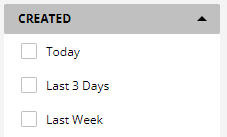
Show pre-defined date field values - Will show on every Date field the option to select a fixed time frame:
-
User defined sorting - allows the users to change sorting on filters manually
-
Disable/Enable saved searches: Shows the saved searches in folder feature
-
Saved searches position: Defines if the saved searches a shown above/below other filters
-
Automatically extend saved searches: Have the area with saved searches automatically extended
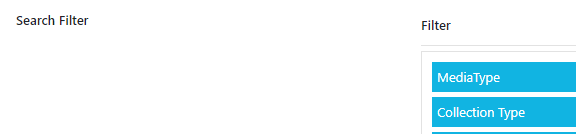
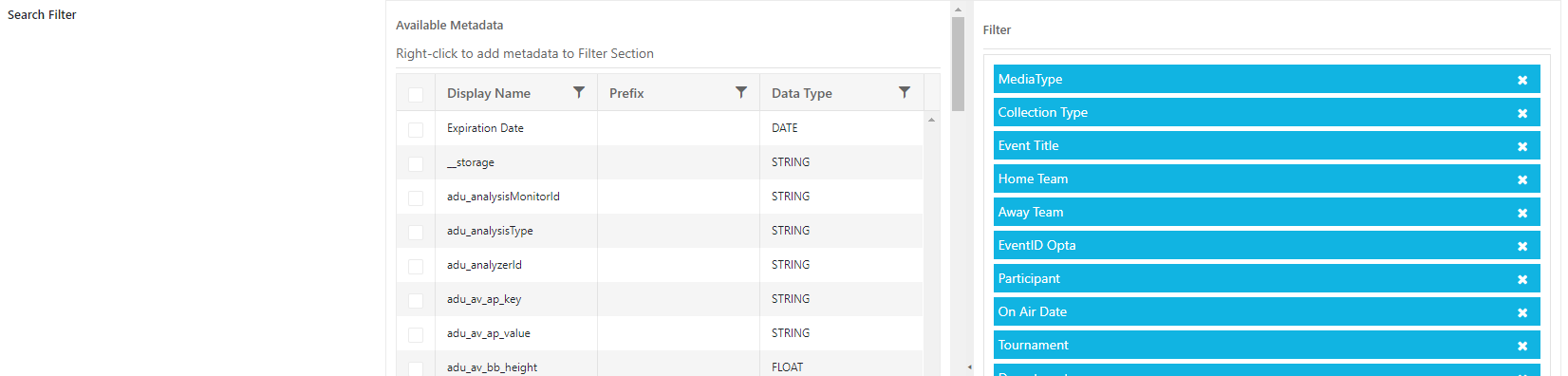
Define metadata values which are listed as filters.
Note: In order to display items and collections under MediaType, add both values to the filter.
All item/collection related metadata can be picked for the filter.
Depending Filters
Set relations between values from a specific metadata field and open corresponding metadata field on filters.
Left: Source metadata and values that opens another filter card
Right: Target metadata card which is visible once a corresponding value on source has been selected

Example
I want to open the duration filter when video is selected on mediaType
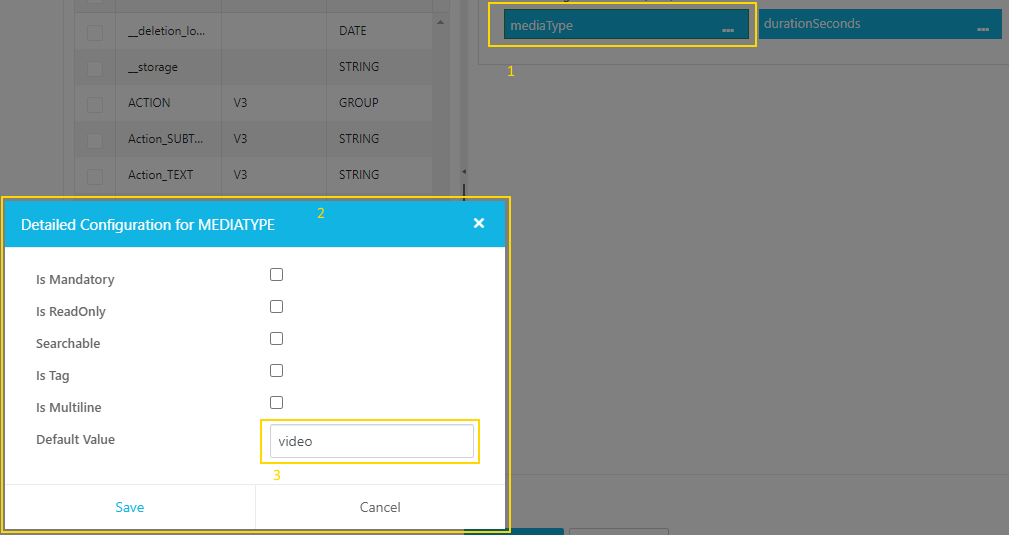
1: Open Control, Search for metadata mediaType and add to the left bag
2: Open Detailed Configuration on the context menu button '…'
3: Select value from drop down which a user can select and should open a new Filter Card

4: Select metadata which should be opened to the right bag
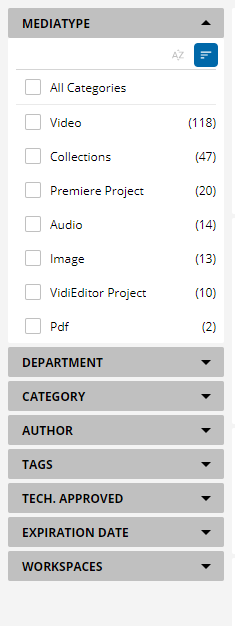
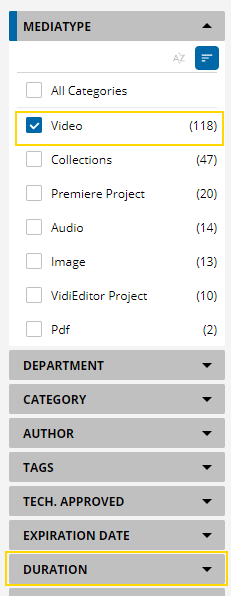
Hint: For adding additional Value - Field relations add multiple entries. E.g. Open Duration and Keywords if the user enables video. Create config relation for Mediatype video → Duration & Mediatype video → keywords

Be aware, that not all configurable controls options in this control have an effect on the Filter relation.
Negative Filter
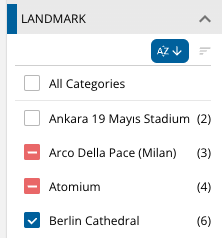
In order to exclude a value from the filter. The user can hold the SHIFT-Key and click on the box. This will turn it red and show a minus. The following image shows where this values does not occur.
Organize Workspaces
General Settings:
Define the location of workspaces using the Workspace Settings under Filter.
-
Quota Limits:
-
Set thresholds for workspace quotas:
-
Warning Level: Define the percentage or item count when the warning (orange) is triggered.
-
Max Level: Specify the value where the max threshold (red) is reached.
-
-
Roles and Permissions:
To fully utilize workspace features, assign roles as follows:
-
Create Folder:
-
Role: MPVDT_WRITE_NEWWORKSPACE
-
Grants users permission to create new workspaces. Users without sharing capabilities can create folders for personal use only.
-
-
Share Folder:
-
Role: MPVDT_WRITE_SHAREWORKSPACE
-
Enables users to share workspaces with groups and view shared content.
-
-
Add Content:
-
Role: MPVDT_WRITE_CONTENTUSER
-
Allows users to add content to collections where they have write access.
-
Role: MPVDT_WRITE_CONTENTGLOBAL
-
Allows users to add content to all collections.
-
-
Quota Management:
-
Role: MPVDT_EDIT_WORKSPACEQUOTA
-
Grants the ability to create and configure quota rules.
-