
An often needed scenario is the usage of metadata placeholder objects that can hold metadata even before media in the MAM system exists. Various scenarios exist where this is helpful such as Newsroom Integrations, general planning or Rundown creation to name some. This is realized while using collections of certain type. Those collection can hold VidiCore metadata fields that will inherit to objects added inside the collection.
Create Placeholer
Typically Collections of the type MetadataContainer are used for such scenarios. Those colelctions in most scenarios are created by 3rd party applications such as NRCS systems. Anyway it is also possible to configure MediaPortal (see Create Collection in MediaPortal) to create MetadataContainer Collections. A user can create those using the create collection option:
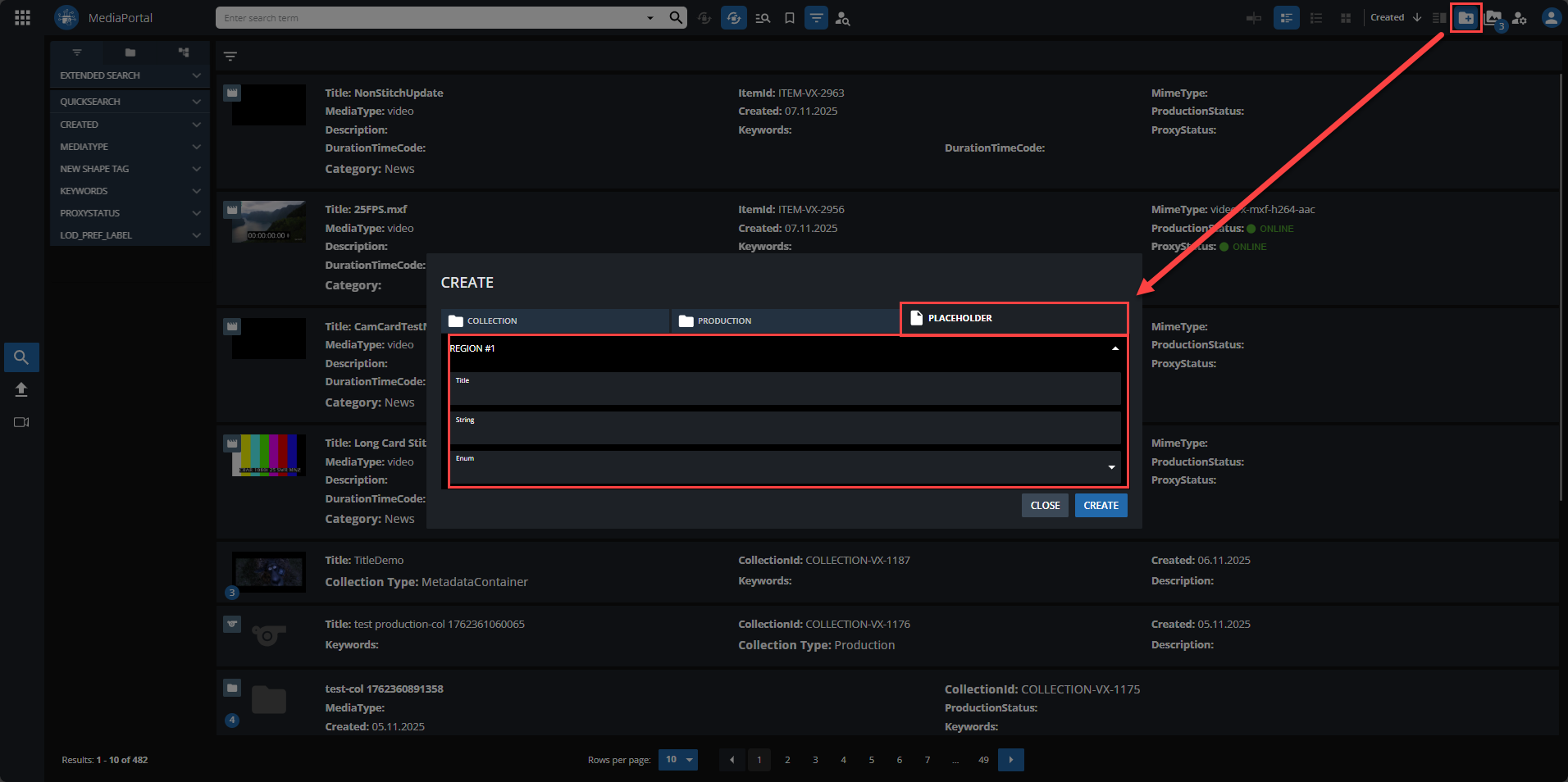
Open Placeholder Assign Dialogue
As soon as those collections exist and Placeholder Assignment is configured as described in Placeholder Assignment the user can open the placeholder assignment from MediaPortal result list via the context menu:
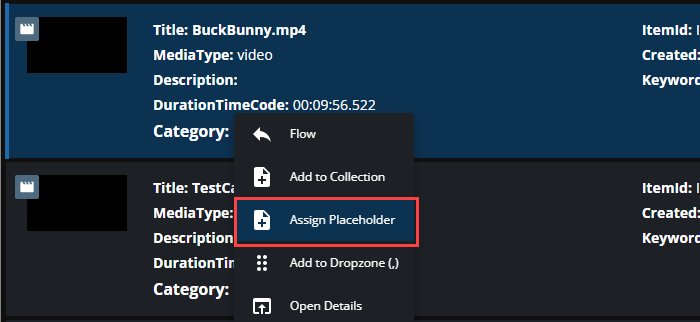
A modal will open allowing the user to assign an object to a Placeholder:
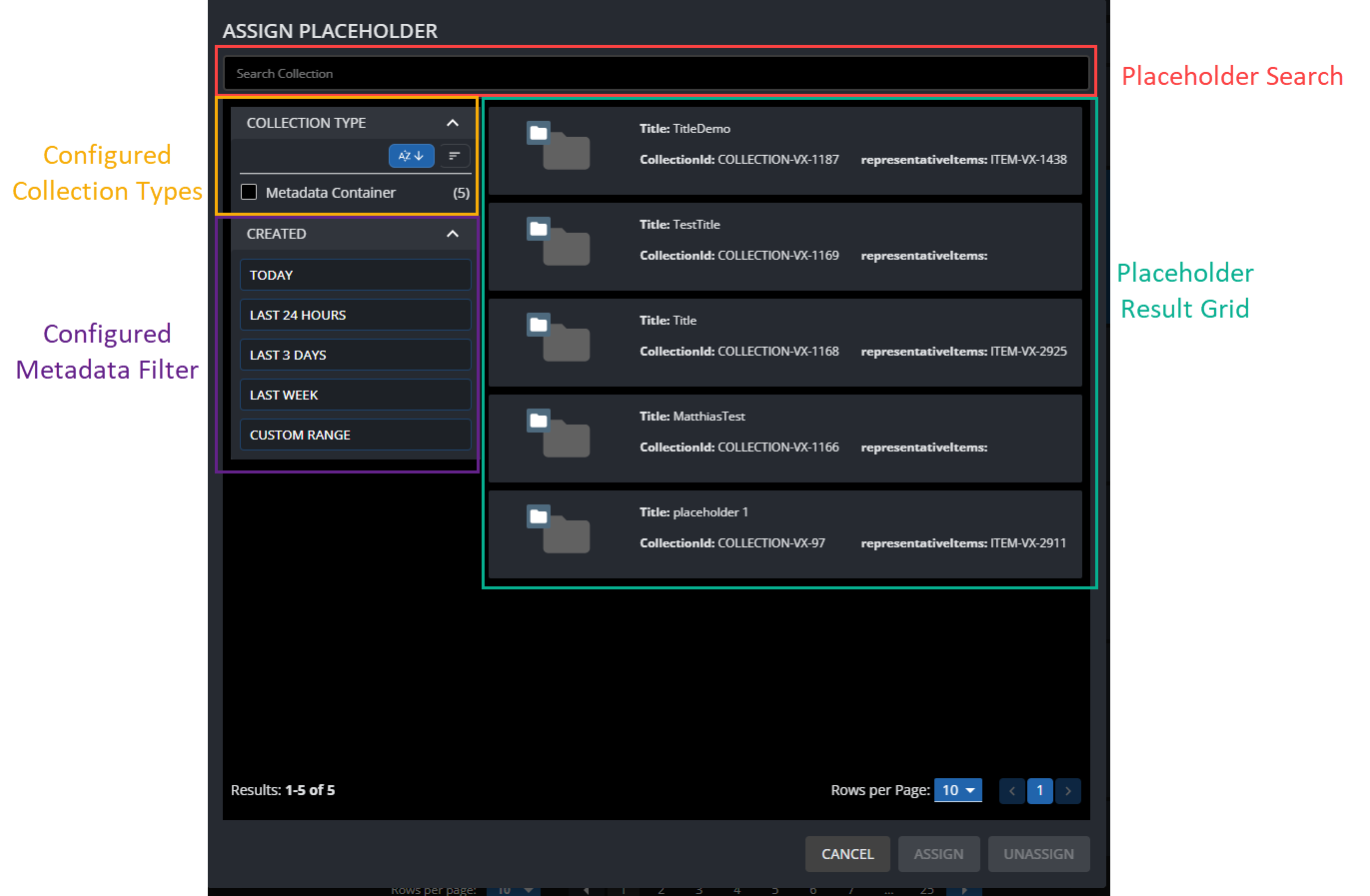
This allows a user to see all available placeholders and to search through them based on their metadata. Also filter options can be used dependent on configuration of the metadata model and the dialogues configuration.
Placeholder Assignments will only work on single selected items not for a batch of items
Assign
To assign an item to a placeholder simply select the wanted placeholder and click the assign button in the footer area. This will add the chosen object into the placeholder collection, resulting also in metadata values being inherited to the nested object if metadata fields are configured for inheritance.
Representative Item Mode
If the dialogue is configured for representative item mode (see How do I create a placeholder?) the assigned object will be persisted as the relevant or representative item of the placeholder. This is especially helpful if only 1 item is the valid one for the placeholder.
If mode is set to multiple Assignment the dialogue just adds as many objects to the placeholder as wanted without additional logic.
Unassign
In this mode also unassignment is possible while simply selecting a placeholder in the result grid and clicking the Unassign button. This will empty the representative Item information but will not replace the object from the collection.
For this its of advantage displaying the representative item ID in the result grid so a user can see if a placeholder already has an assignment.
Reassign
If the user selects a placeholder already having a representative item assigne the dialogue will guide the user to overwrite the assignment showing following message:
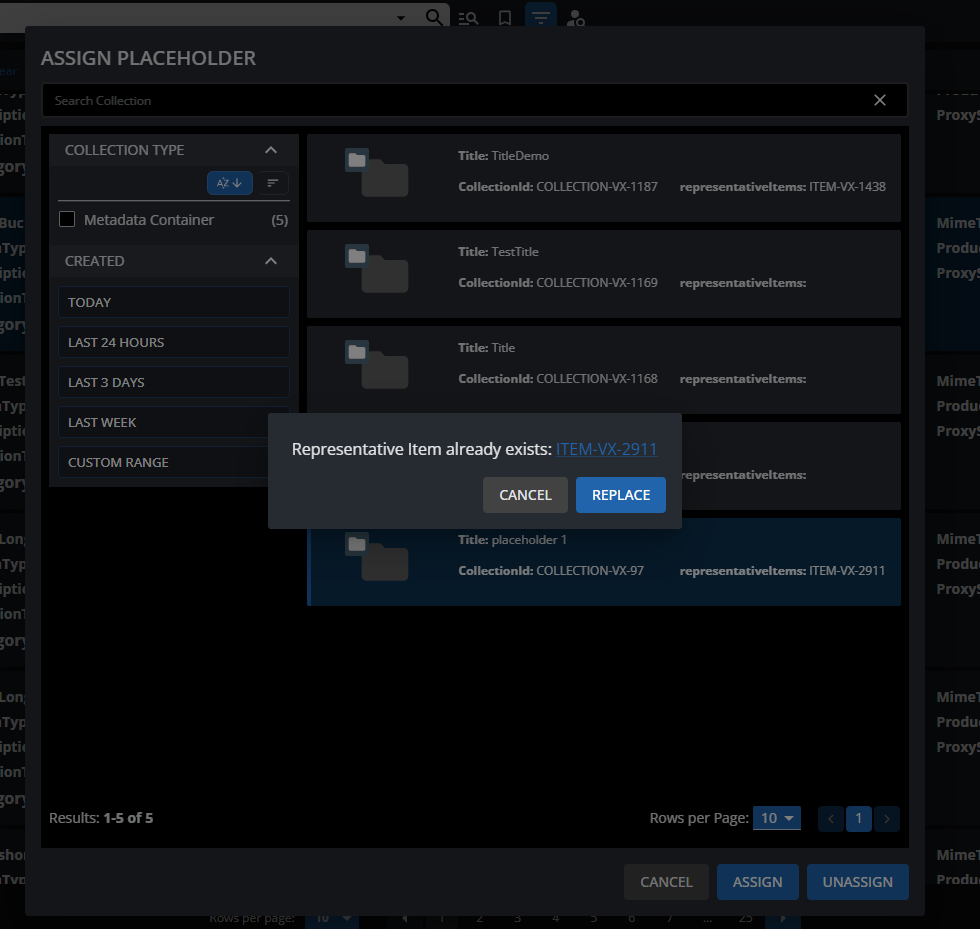
This also allows to navigate to the previously assigned object in MediaPortal checking its state.