
The Edit Booking area in VidiControl is identical to the Create Booking area. The difference being that you are modifying existing values of the Specification section as well as drawing from the selected booking (which appears automatically in the Search section).
Reaching the Edit Booking Area
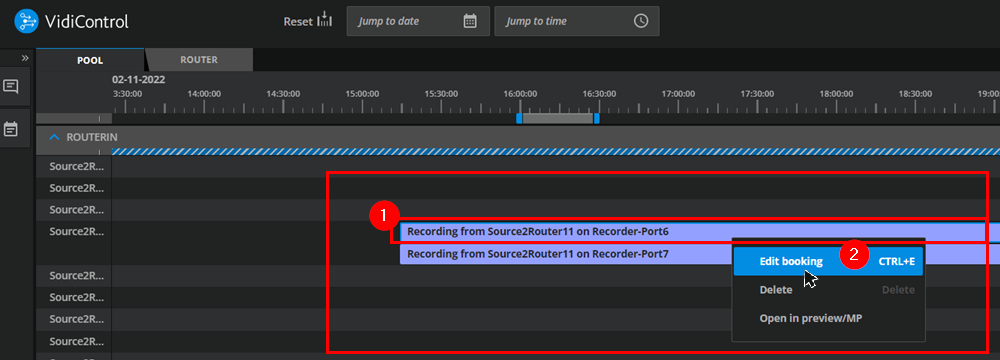
You can reach the Edit Booking area by selecting a booking on the timeline and opening the context menu. Then select the “Edit Booking” option (2).
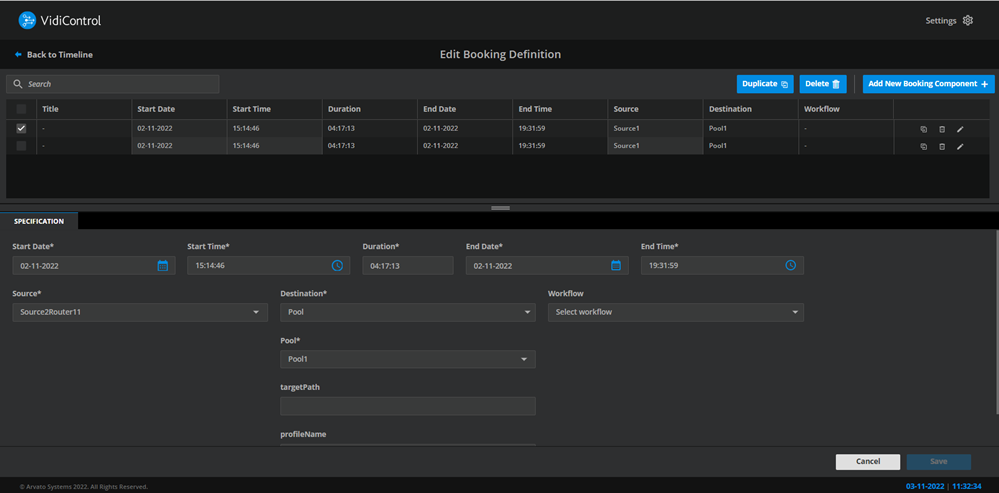
The Edit Booking Area Overview
As stated above, this area is identical to the Create Booking area. The difference is that users will have for an existing booking at least one booking component they can edit. As there can be many more booking components assigned to a booking, one should take into account the search function to reach intended booking component.
Switching Between Booking Components
Being within the Edit Booking area, users are able to switch between different component on listed on the table. Selecting the “edit” icon will refresh both the Specification and Metadata tabs to match the respective component.
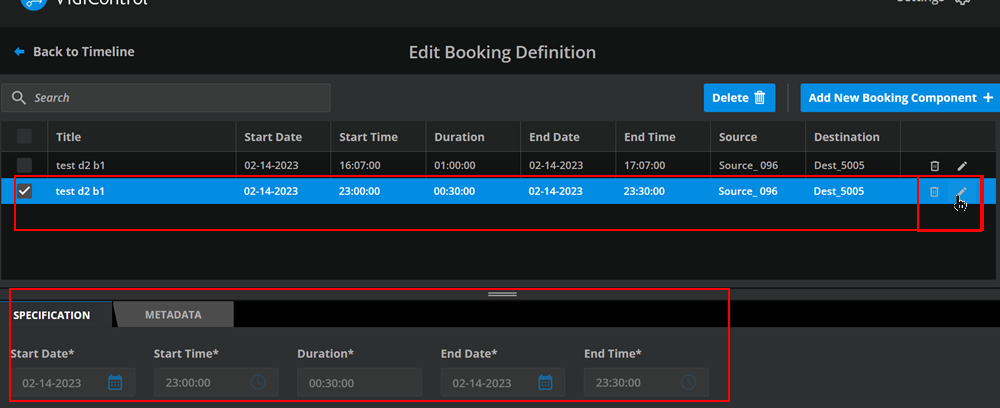
Section: Specification
After specifying or modifying the values for a booking component’s parameters, users can then confirm on “Save” to carry out the changes.Area: Create a Booking | Section: Specification
Section: Metadata
After selecting a booking component, users will have the detailed view of that component expressed.
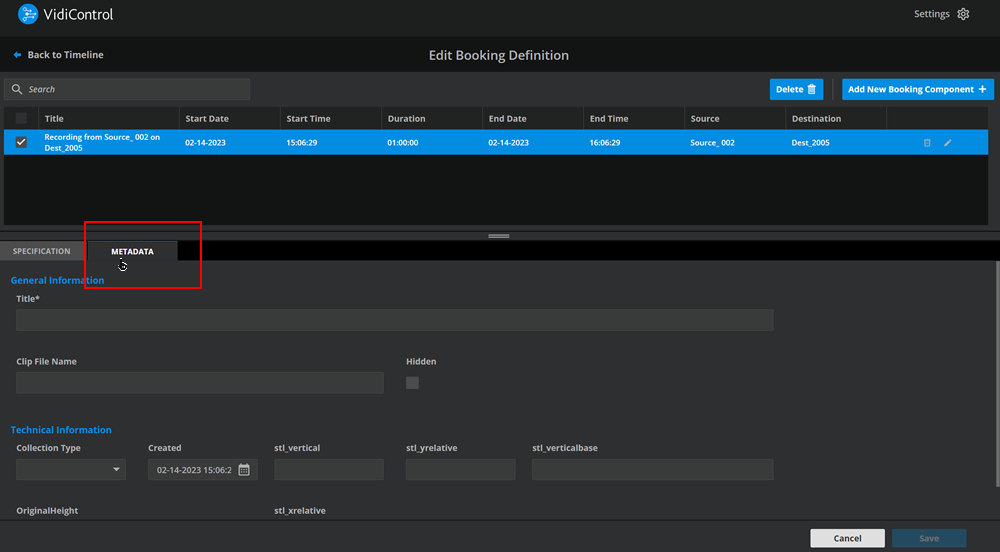
While certain fields are fixed, VidiControl’s metadata set is configurable.