
Configure the display of time code based meta data along with the Player on the Preview Panel and the Details View
GENERAL
Keyframes as default: Automatically load the key frames first along with the player
Sequence as default: Display of Source sequence information from Adobe Premiere and VidiEditor can be turned on and off
DEFINITION
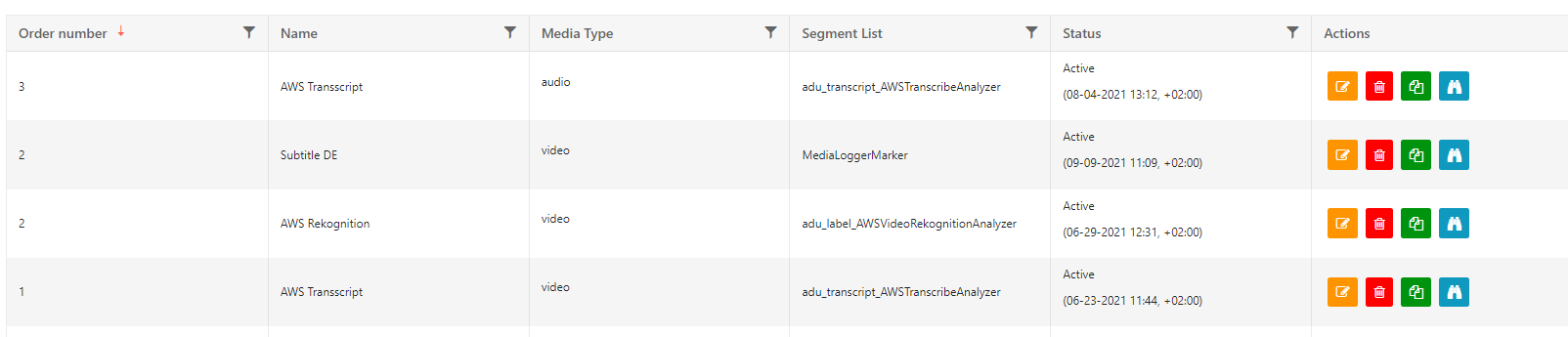
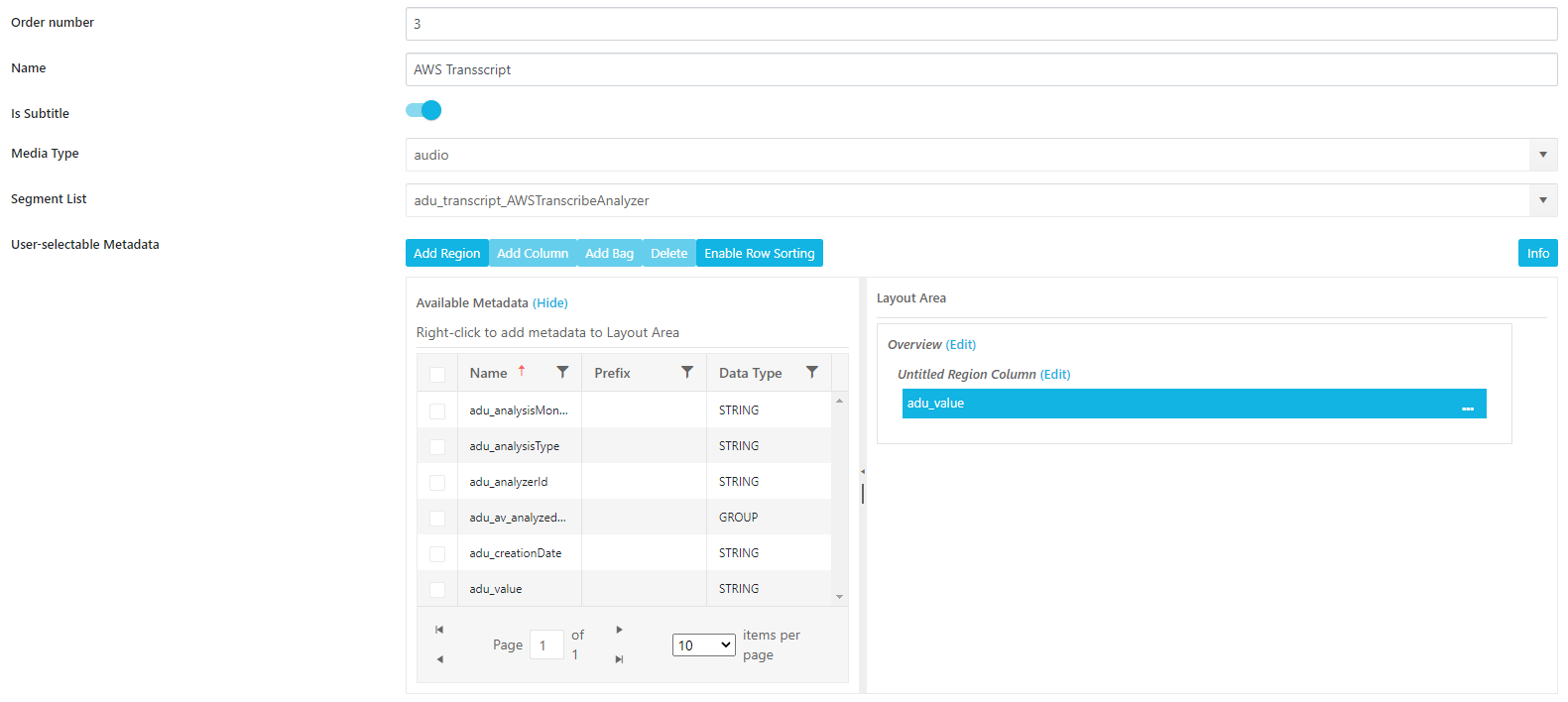
Order by number: Manually set an order as a full number (1,2,3 and follows). Smallest number will be on top. If administrator assigns same number twice it will show the latest created segment list
Name: Display this label in MediaPortal
Is Subtitle: Enables which list as option to the subtitle selecton on the player. When a user selects this list on the player, it will be shown as overlay
Media Type: Video or Audio be chosen. Corresponding list will only be available on these.
Segment List: Choose from the generally defined meta data groups which contain timecode based entries
Title field for segment: If an event is handed over to Dropzone, use this as displayed title and for partial within the Collection
Enable Timeline for group: Shows timeline for selected metadata-group
Show timeline based on field values: By default shows timeline with specific values per metadata field. Like e.g. sport events
User-selectable-Metadata for Timeline: Selectable values from the metadata group, like event or person, which will then be shown as individual values
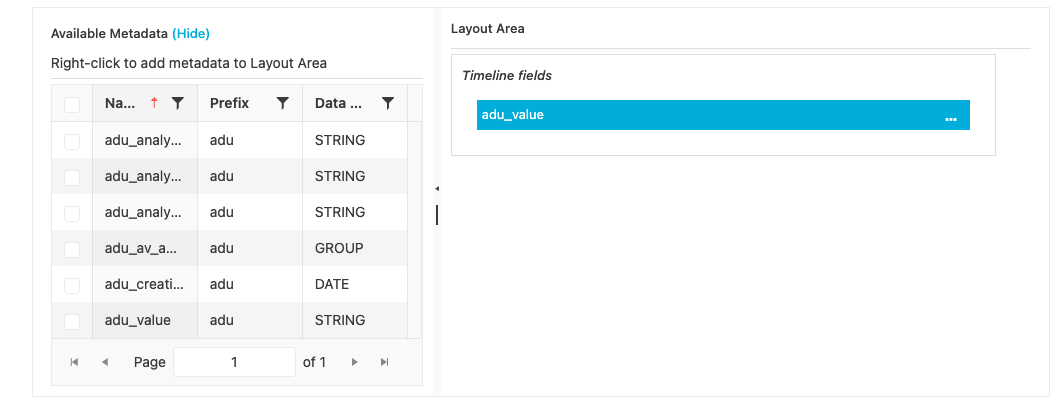
User-selectable-Metadata: select from the meta data group, which fields should be actually displayed and how they are arranged
Enable and manage Segment Groups specifically for Word Selection.
SEQUENCES CONFIG
Select a metadata field and define a color code which is show on a specific value. For example one can define red as color for material which has restricted royalties

Organize Workspace
The Organize Workspace provides users with a dedicated interfacer to efficiently manage and structure media assets.
-
Drag-and-Drop Organization: Easily rearrange and categorize assets using intuitive drag-and-drop functionality.
-
Collection Management: Create and manage collections or folders to group related media items.
-
Metadata Editing: Set Metadata upon creation of a workspace
-
Collaboration Tools: Share organized collections with other users or teams to support collaborative workflows.
-
Search & Filter Integration: Seamlessly combine organization tasks with powerful search and filter capabilities for quick asset retrieval.
-
Access Control: Leverage permission settings to control who can organize, modify, or view specific collections.
-
Quota function allows administrators to manage and control storage usage within MediaPortal. Key aspects include:
-
User and Group Limits: Set storage quotas for individual users or user groups, ensuring fair and efficient use of available storage resources.
-
Prevent Overuse: Automatically restrict users from uploading or ingesting new media when their assigned quota is reached.
-