
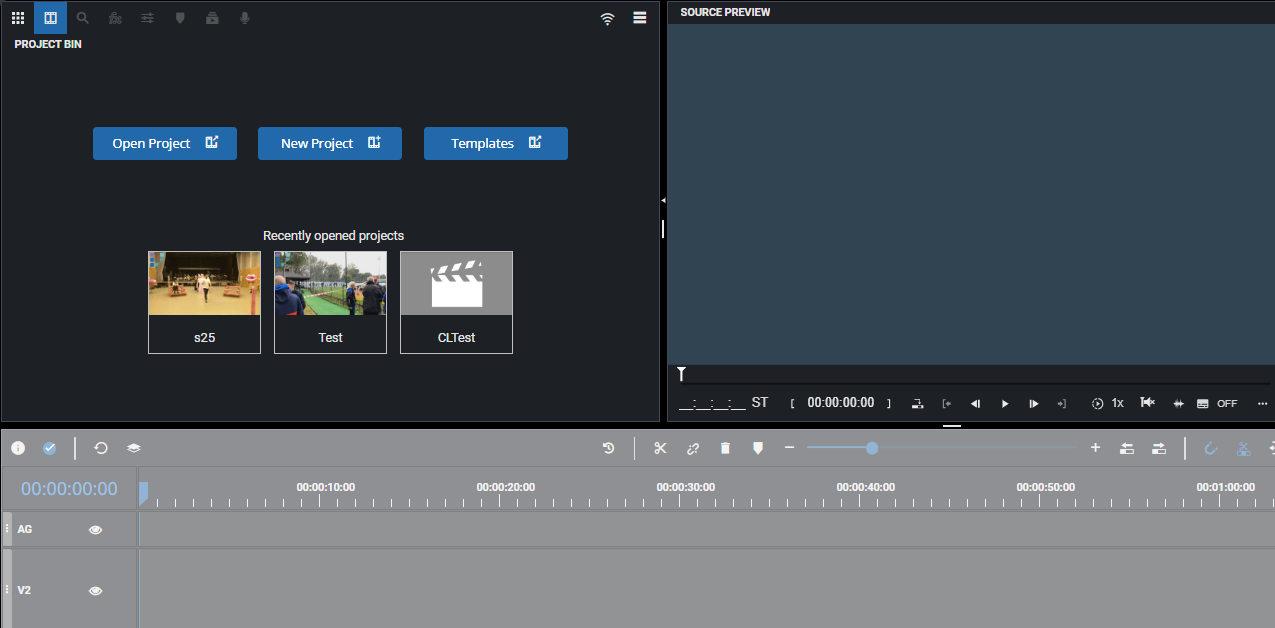
The first entry point into VidiEditor is it’s landing page, that will be presented when entering the root URL into the web browser or when choosing the close “project option”. It provides 4 starting options:
-
Open Project: This opens a basic search of already existing projects that are owned by or shared with the the logged in user
-
New Project: This opens a form dialogues allowing the user to create a blank project from scratch
-
Recently Opened Project: This allows quick access of the last 3 projects that where used by the logged in user on the used client PC while simply clicking on it.
-
Templates: This opens the template dialogue Project Templates [VE UG] to create a new template or to use an existing template for editing to not start with a blank project.
Open a Project
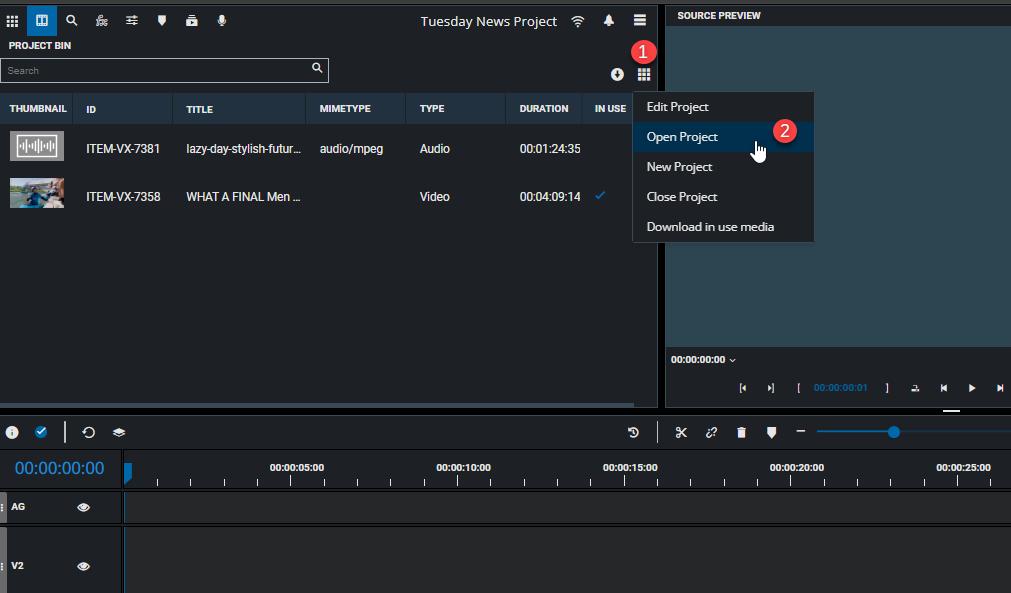
Directly from the Project Bin, users are able to open existing projects by clicking, Project Settings (1) and the "Open Project" (2) button. This will prompt the Open Project window, allowing users to search for projects based on their title. Selecting a project will allow the "Open" button to be selected.
Please note whenever a project is opened a lock occurs that prevents other users from opening the same project.
See Project Lock Behavior
Any of those interaction will open the “open project dialogue“ allowing the user to find a project from the central VidiCore repository. It is structured in 3 different areas
-
Recently Opened: Shows the last used projects of the logged in user to allow quick access to it.
-
My Projects: Lists all projects the logged in user has created and therefor being owner of.
-
Shared Projects: Lists projects that have been shared with the logged in user but where the user is not the owner of the project.
Following figure gives an overview:
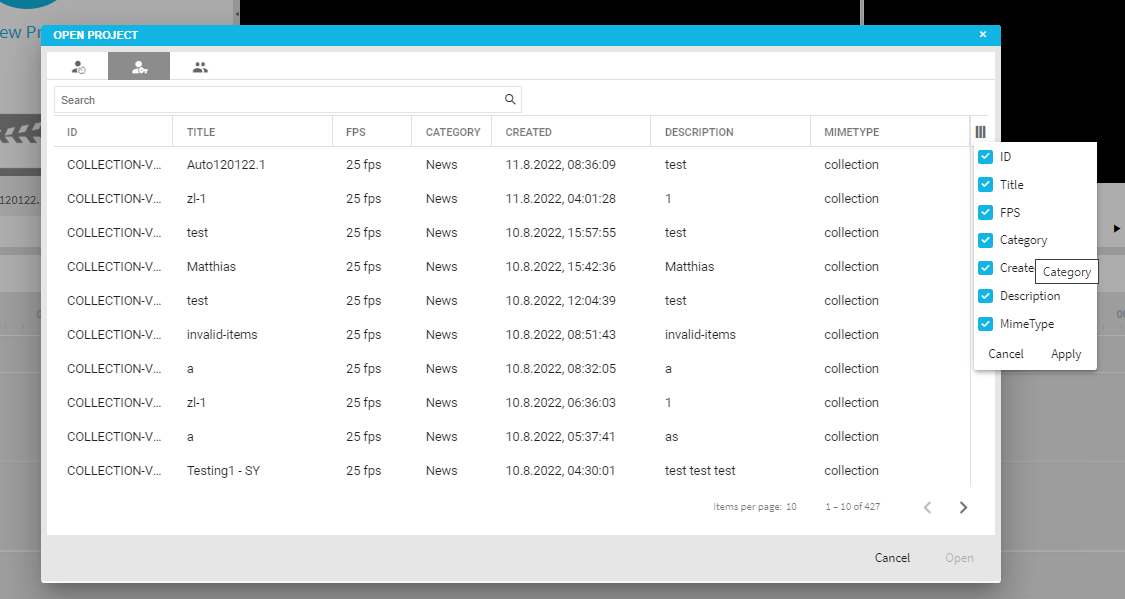
The grids of the dialogue are configurable in ConfigPortal so the metadata displayed depends on the configuration of the system. On top of this the user can blend out columns of the grid as well as changing the ordering of the columns using the grids user preferences menu as shown also in above figure on right hand side.
Auto Save
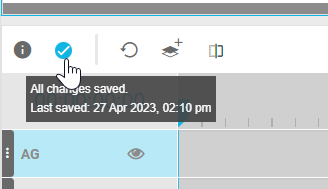
Please note that projects are automatically saved after any action. This is indicated by the following icon displaying a checkmark.
Create a New Project
From the Project Bin, users are able to create new projects stored in the media repository by clicking on the "New Project" (1) option.
By entering the intended title for the new project, users are then able to click on the "Create & Open" button to start working on their new editing project. This new project will become managed and stored in the media repository with its own unique ID.
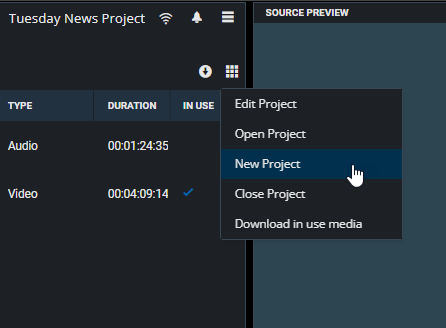
Please note that only one project can be open at a time. Opening an existing project or creating a new one will close the current project.
Project Lock
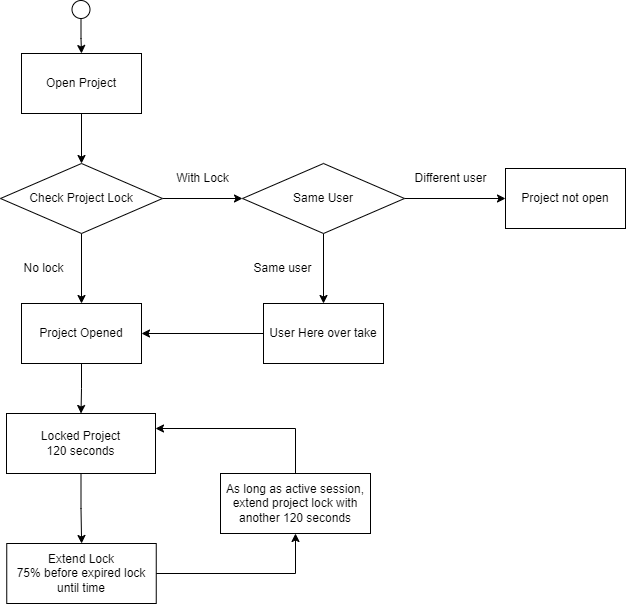
When a project is opened, a project lock is automatically applied to prevent other users from accessing the same project simultaneously. This lock ensures that only one user can have the project open at any given time to maintain data integrity and avoid conflicts.
Project Lock Behavior:
-
Exclusive Access:
-
Once a user opens a project, it becomes locked for other users. If a different user tries to open the same project, they will be notified that the project is currently in use and locked by another user.
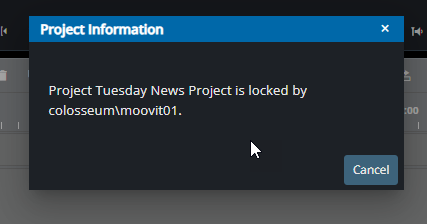
Project information window
-
-
Takeover Capability:
-
If the same user attempts to open the project from another browser or device, they have the option to take over the project. In this case, the previous session is ended, and the project becomes available for the new session.
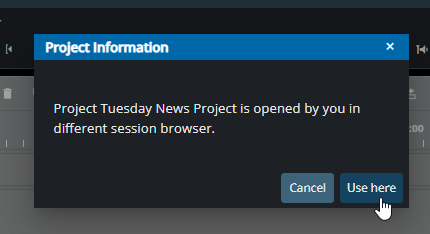
Taking over an already opened project
-
-
Lock Duration and Expiration:
-
The lock remains active as long as the user is interacting with the project.
-
As long as the user remains active, before the existing lock expires, it will be extended for another 120 seconds, ensuring that the project stays locked and available only to the current user.
-
If the user becomes inactive or closes the project, the lock will be released, allowing other users to access the project.
-
Close Project
This option closes the currently opened project and navigates the user back to the VidiEditors landing page.