
For recurring editings it can be of real advantages and time saver to use templates. Those allow to prebuild project bins and timelines that can be used for project creation. Basically project templates are normal VidiEditor projects that differ in a some aspects:
-
Templates can be used as starting point instead of using a blank project from scratch
-
Templates can have a different deletion expiry date in compare to projects based on configuration
-
User can set the deletion expiry time individually for different projects
-
Templates ensure the used media is not deleted while inheriting the deletion date to the media
-
Templates cannot be published directly but can be used as source on project creation
-
Templates do not allow Voice Over recordings
-
Templates have an own Collection Type (Collection Types [C ARC]) to filter and visualize them different in Vidispine GUIs
Template Creation
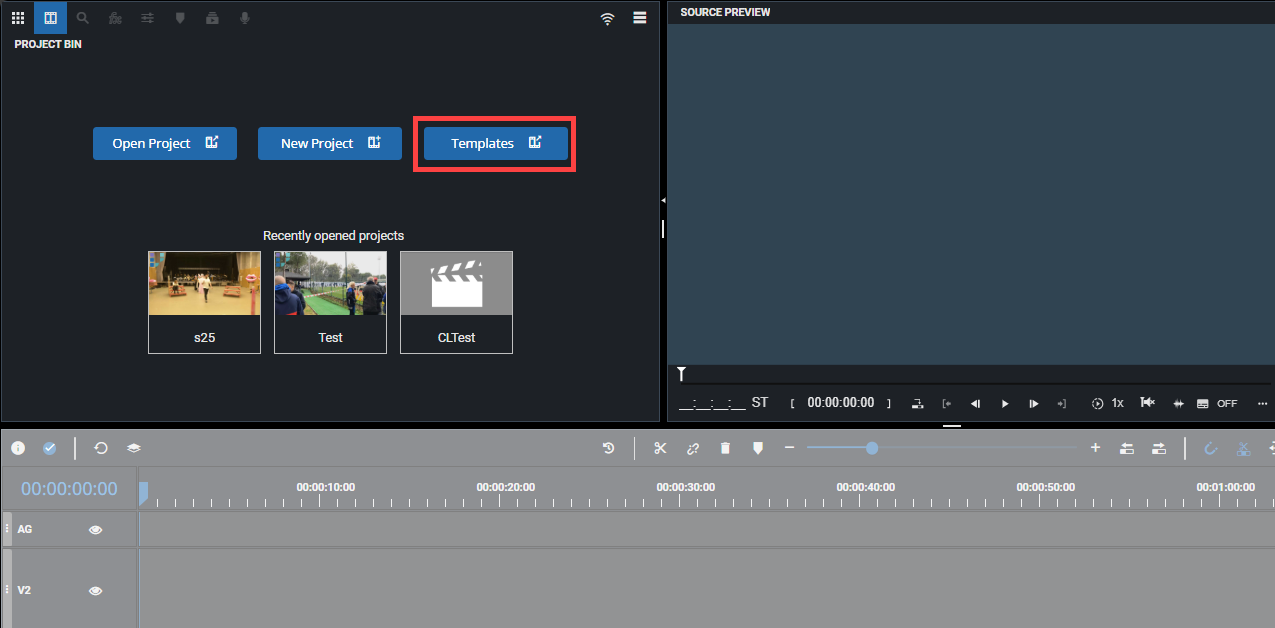
User can create templates easily while navigating to VidiEditors landing pages entering the root URL or while choosing “close project” option Open or Create a Project. In the landing page an button “Templates” is displayed:
After choosing “Templates” option the templates dialogue will be presented to the user:
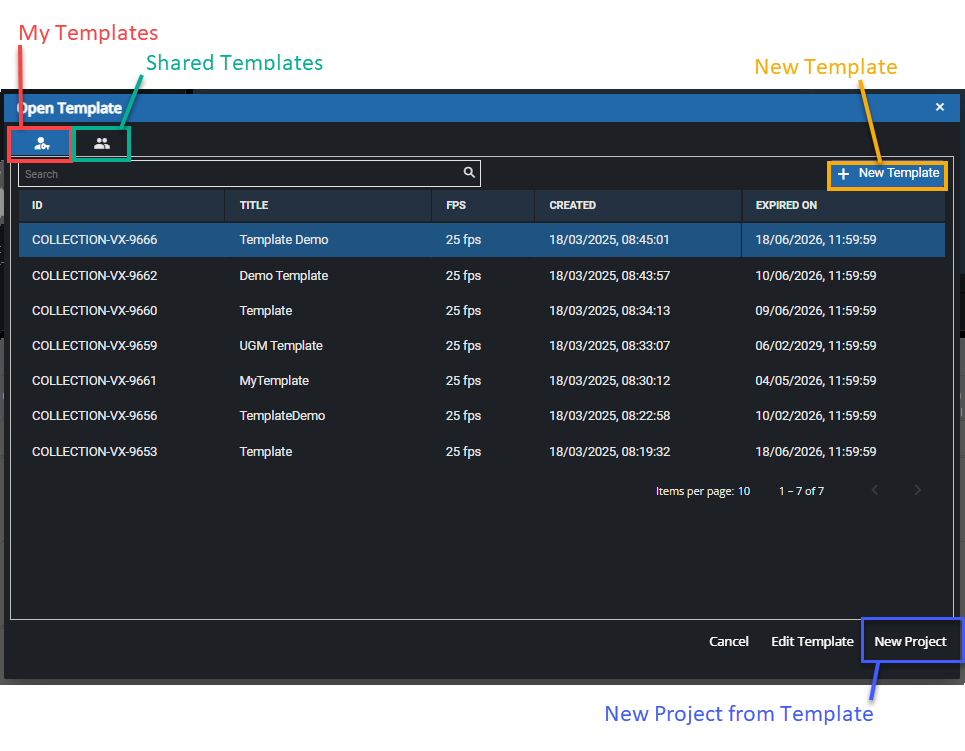
This allows to:
-
Search for exisiting templates filtered by
-
My own templates created by me
-
Shared projects created by somebody else but where I have access to
-
-
Open an existing template for editing of the template while
-
Double clicking on the template in the result grid
-
Selecting a template from the result grid with a single clikc and clicking the “Edit Template“ button
-
-
Create a new template from scratch while using the “New Template” button
-
Create a project based on a template while selecting it and use the “New Project” button
We assume the user starts from scratch and uses “New Template“. in result a dialogue open that looks as follows:
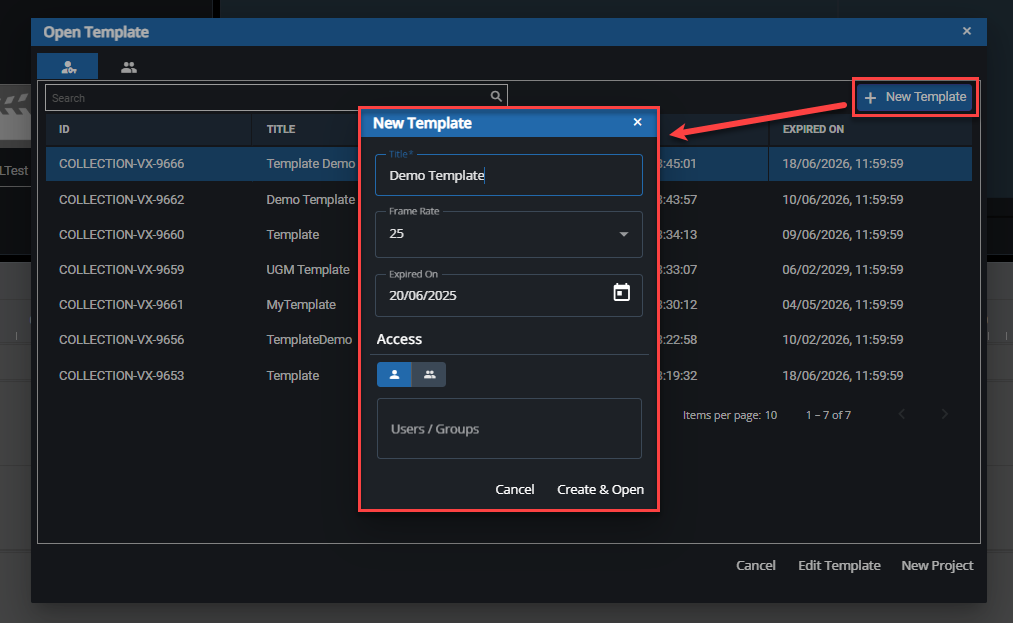
This is similar to the create project dialogue but differentiate in some poitns:
-
No metadata configuration is available here and only a title can be used to identify the templates
-
Users can set the expiry date of a template manually as the expected deletion might differ for different templates.
-
Access Control based on configuration as manual option or while using an ACL rule ACL Management
After usage of this dialogue and click “Create & Open“ the VidiEditor will display the Template design view. This view is very similar to the project editing view but differentiates in some saspects as those are out of interest for templates. Anyway all available features presented in the GUI can be used as normal including:
-
Usage of system media
-
Usage of Animated Graphics
-
Timeline Editing tools
-
Effects and transitions
-
Keyframing
-
Player functionalities
-
Marker
In result the user has full control of editing possibilities like in the project editing view. Options are not possible are:
-
Voice Over Recording
-
Publish
-
Template Project versioning
Using a template for editing
After creating a template as described above the user is able to use the template for a new project:
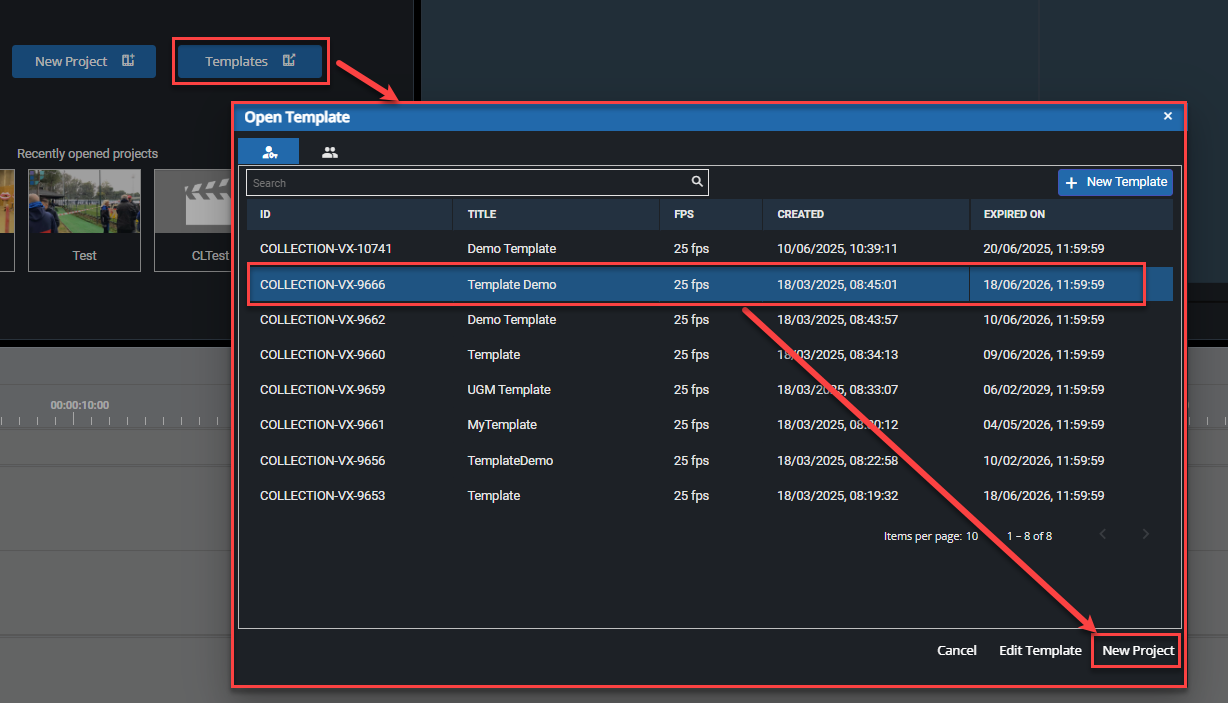
In result all timelines created inside the template will be copied over to the new project instead of starting with a blank project from scratch.
Supported options
When creating templates it is of interest what options are usable. Nearly all options that are possible in a normal projects timeline can also be done in a project and will inherit to the project when using the template as starting point of project creation.
-
Metadata on Templates Projects
-
Lock inheritance for media in bin
-
Audio and Video Cuts and tracks on timeline
-
Audio and Video Transitions
-
Animated Graphics
-
Video Effects
-
Audio Leveling
-
Mute and Hide Tracks and Channels
-
Audio Channel routing and duplication for used timeline segments
-
Keyframing of effects
-
Multiple timelines in one project
-
Crop Timeline so mobile aspect ratios