
MediaLogger is always opened from another application with a video or audio asset selected. To open a specific video for logging, go to your main media management application (e.g. MediaPortal), select the asset and choose “Open in MediaLogger” or similar. In this way, MediaLogger is opened in a new browser tab.
If single-sign-on is not activated, please type in your user credentials and thereupon MediaLogger starts with the selected asset.
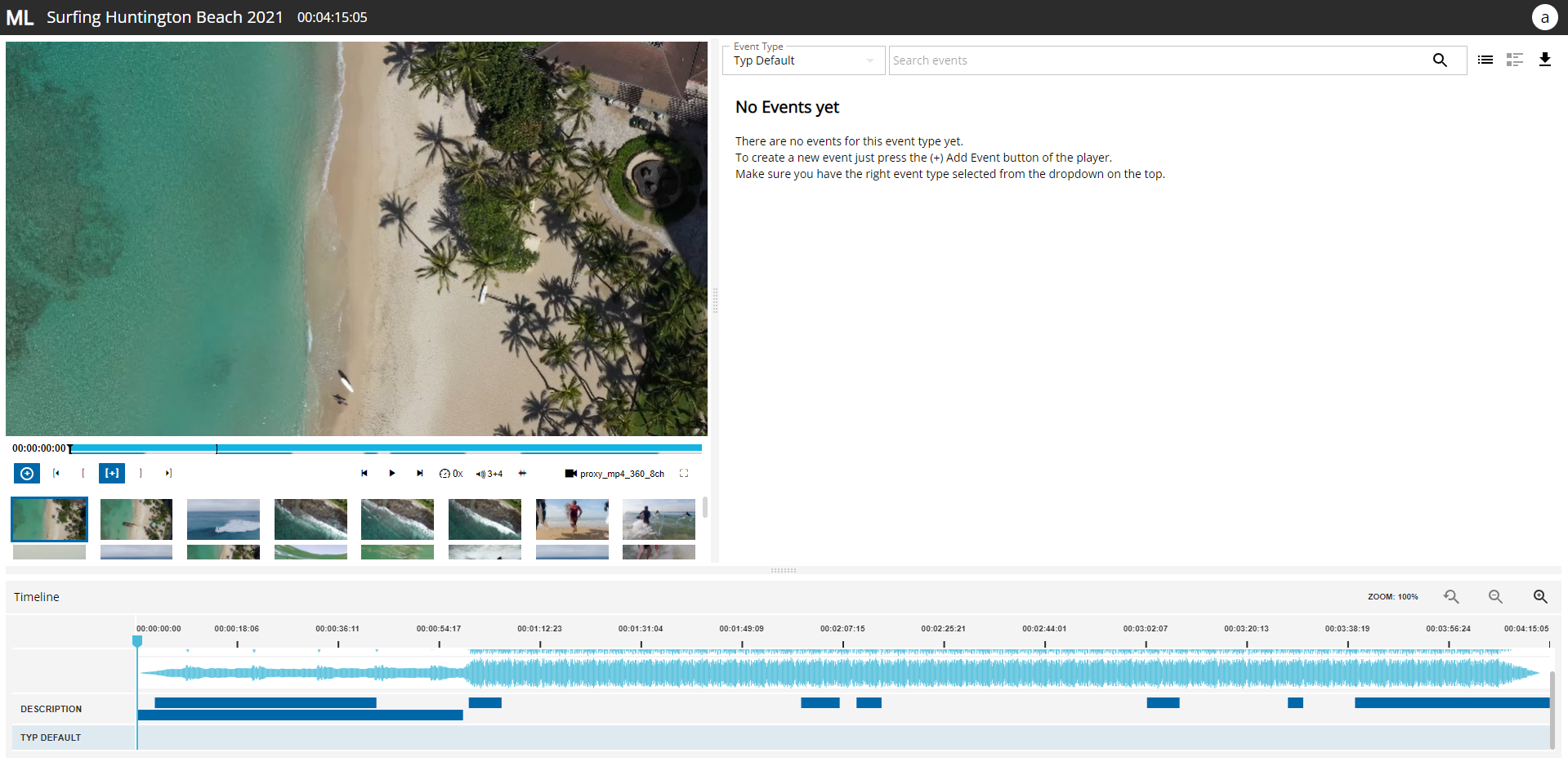
Now you can browse through the file using the player. When MediaLogger is opened on an asset that does not have any events yet, it will look like this:
Find out how to create events in this Create Events section.